 NexusDM
Overview
NexusDM is a campaign-management tool for game masters. A campaign holds typed nodes and the connections between them. You draw them on a map and use them at the table. This page walks through every major feature briefly, so you can see which part solves the problem you have.
Campaigns and modules
A campaign holds your whole game: its modules, nodes, connections and sessions. A module is one investigation or adventure inside the campaign, and a map always belongs to a module.
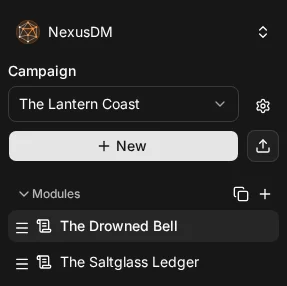
The sidebar is where both live. Switch between campaigns there, and pick a module to work on it.
New accounts start with a Sample Campaign to explore, change or delete. New creates a campaign,
and the button beside it imports one from a .ndm file. Use + to add a module for your next
investigation.
Nodes and connections
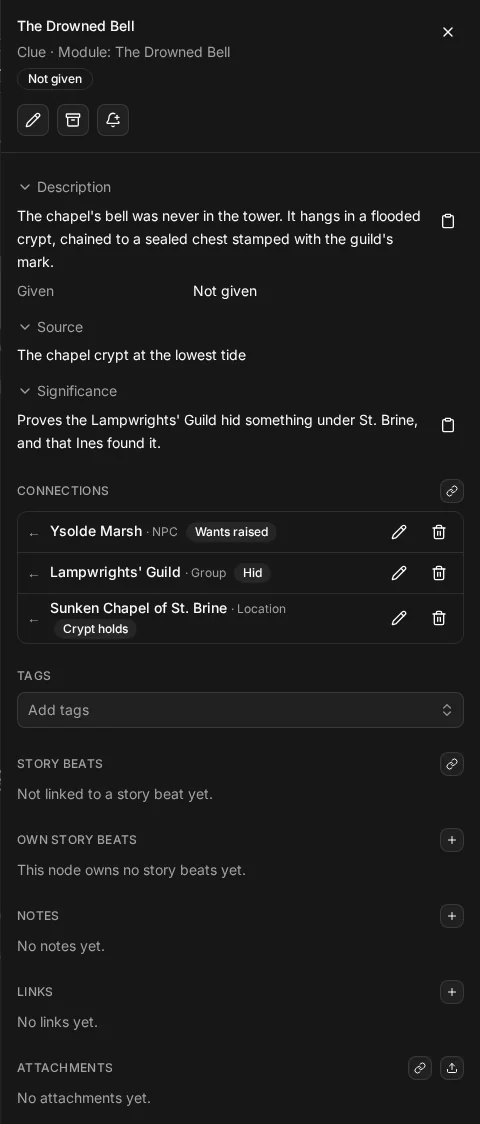
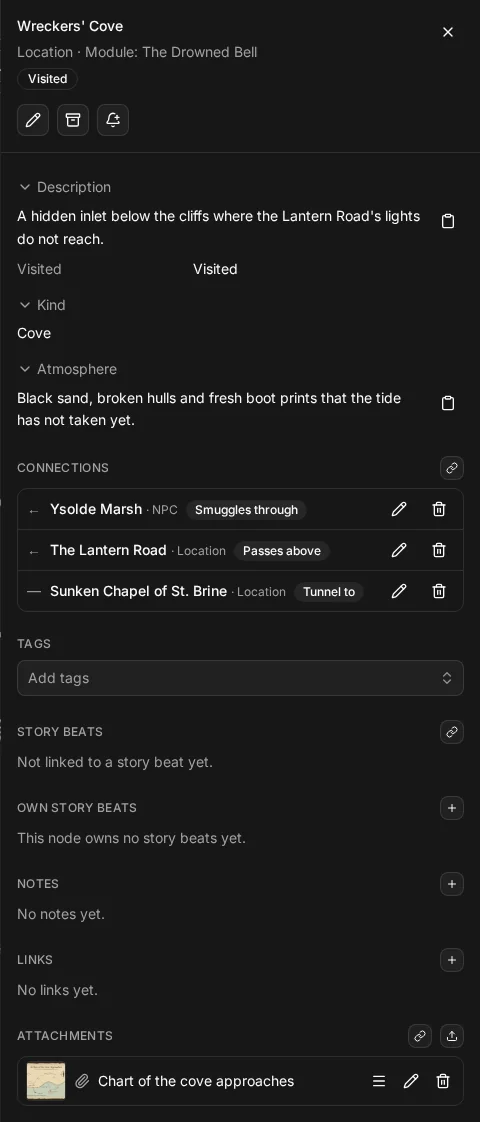
The people, places and things of a campaign are its nodes: an NPC, a location, a clue. A node’s detail sheet holds its fields, its notes and its connections.
A connection links two nodes. It has its own type, text and tags, and two nodes can share several connections, so a rivalry and a debt can both be recorded between the same pair.
Each kind of node is a node type, and your campaign decides which types it tracks. Start from a system-neutral preset such as NPC, Location or Clue from the preset library, then change it freely, or build a type from scratch with your own fields. The Nodes section of the Guide covers node types, their fields and how to change them.
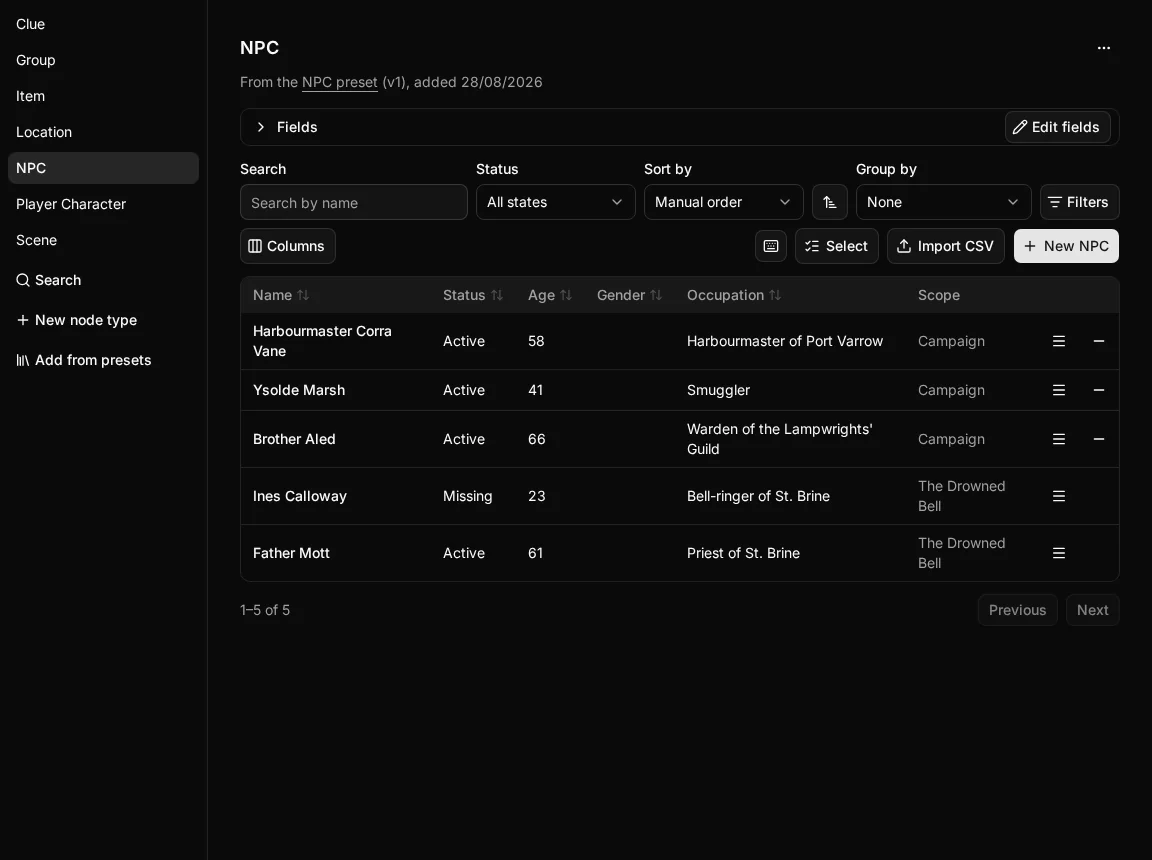
Under Entities, each node type has its own list of nodes. Search them, add new ones, import a CSV, or select several rows and edit them together.
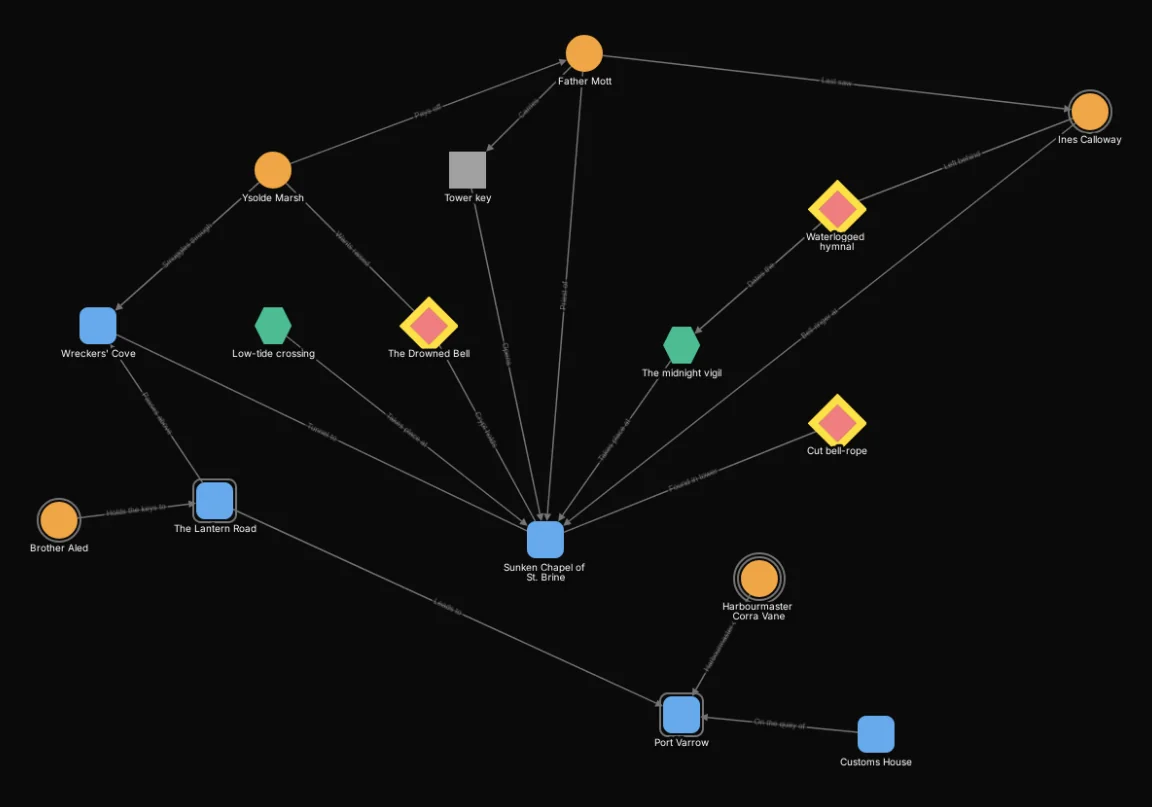
The Map shows the same nodes as a graph, so you can see the shape of an investigation at a glance. Click a node to open its details, or hold C and drag from one node to another to connect them.
Map views
A map view keeps what the map shows and how it shows it. You can keep several views of the same map. Configure view opens a sheet with three tabs, and Save view and Save as… keep your changes for the whole campaign, so a view you built is not lost.
Filters
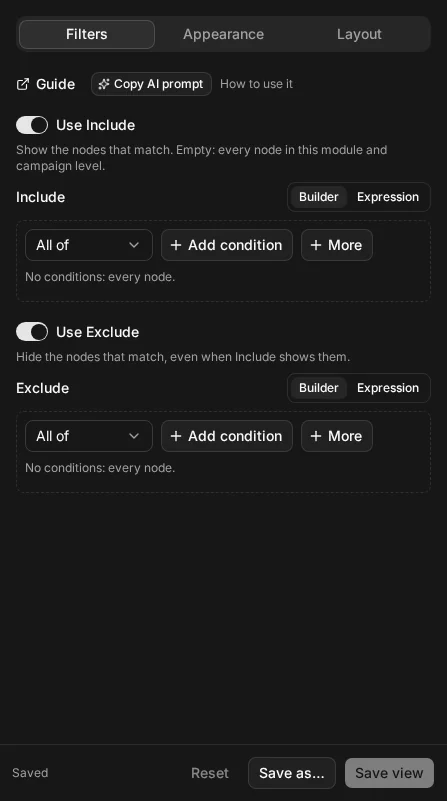
Every map view has an Include filter and an Exclude filter that narrow down which nodes the map shows. The Filters section of the Guide explains how to build them.
Appearance
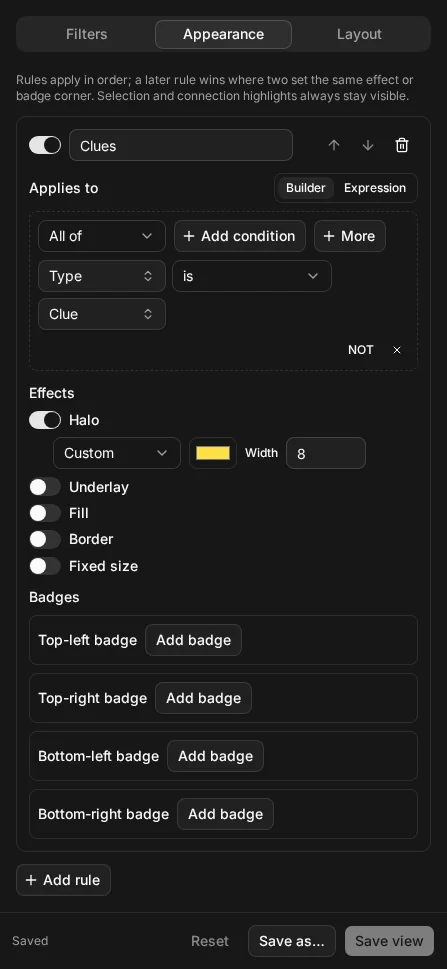
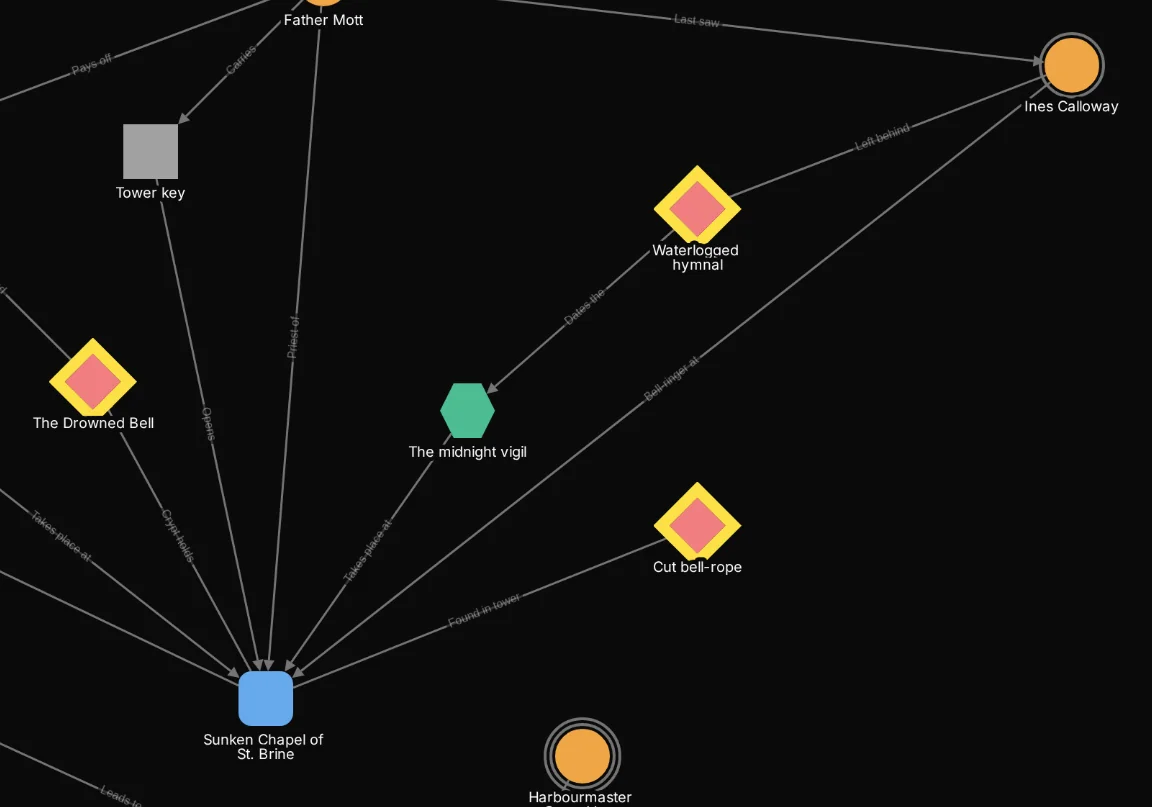
An appearance rule styles the nodes that match a selector. Use one to make every node of a certain kind stand out, or to dim the ones you are not interested in yet. The rest of the map is left as it is.
Layout
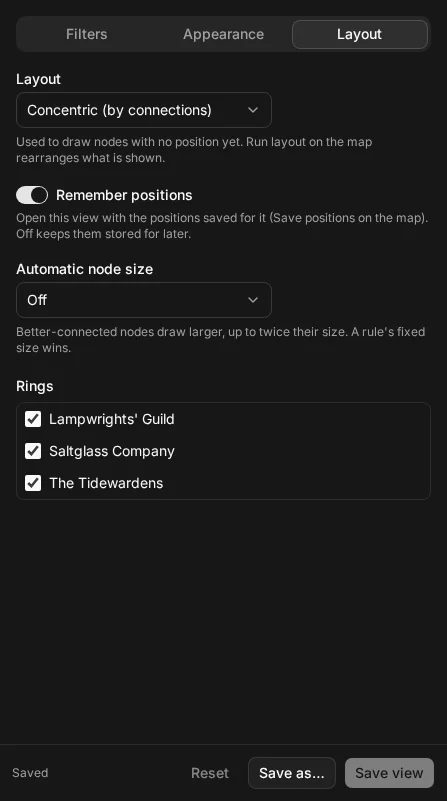
A map view can arrange its nodes in different ways. The layout you choose on the Layout tab places nodes that have no position yet, and Run layout on the map rearranges everything shown. Turn on Remember positions and Save positions to keep an arrangement you like with the view.
DM screen
The DM screen is a grid of panels you arrange and keep open while you run the table, so everything you need for a session is in one place.
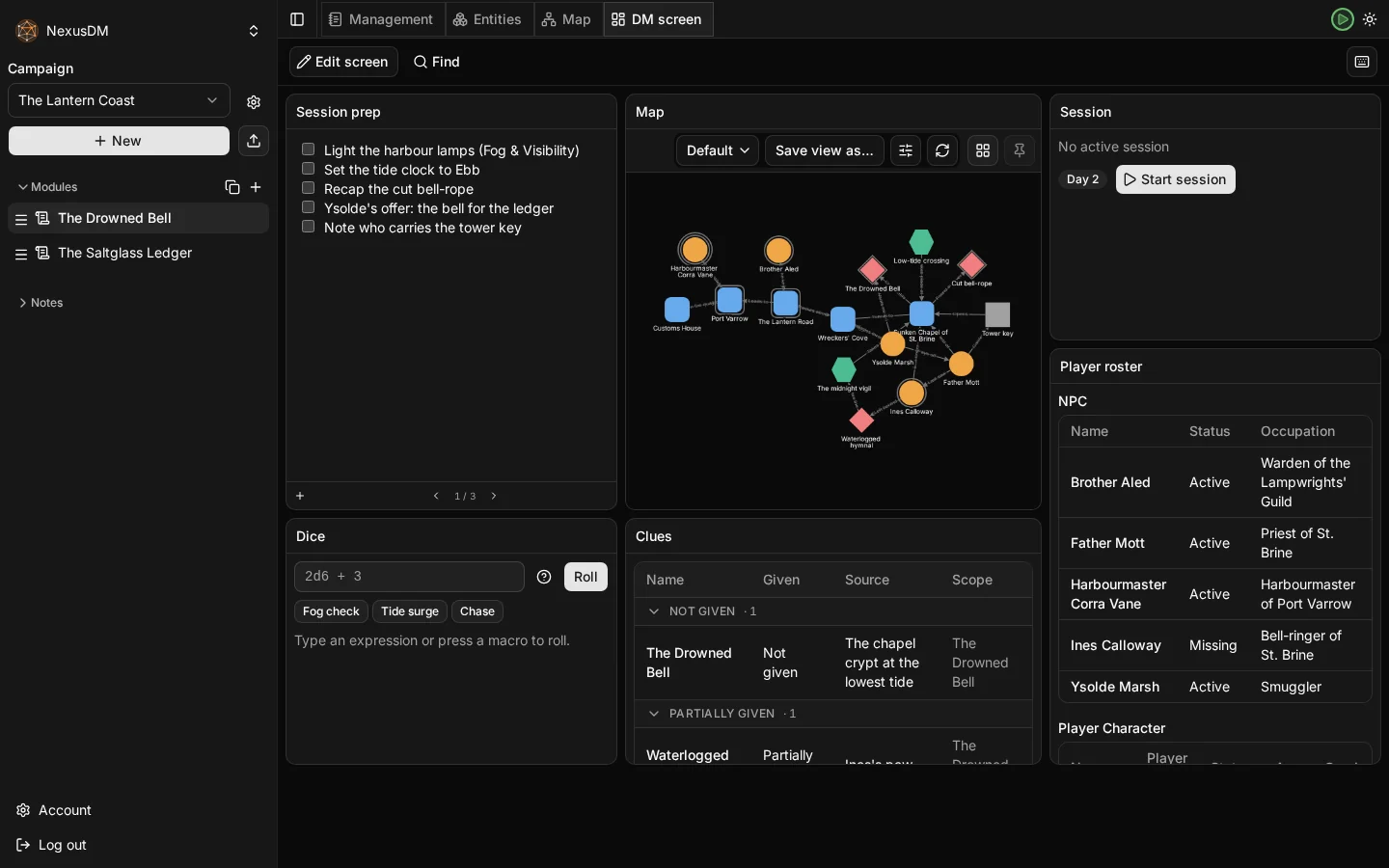
A panel holds written content, such as text or an image, or live campaign information, such as the player roster, and it can have several pages. Flip between pages with A and D while you play.
Edit screen switches between arranging the panels and running the table. Turn it on to add, move and resize panels, then turn it off to play.
Search
Press Ctrl+F to search. It finds nodes by name and by what is inside them: their text fields and notes. Here a few words from a clue’s description find the clue, though they are nowhere in its name.
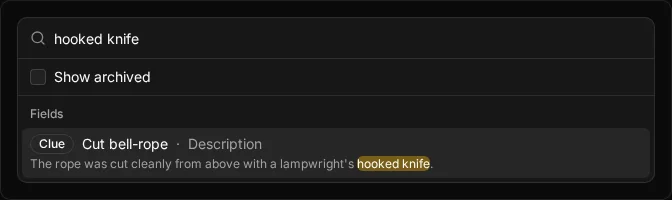
Search works on the map and on the DM screen, and takes you straight to a match.
Sessions
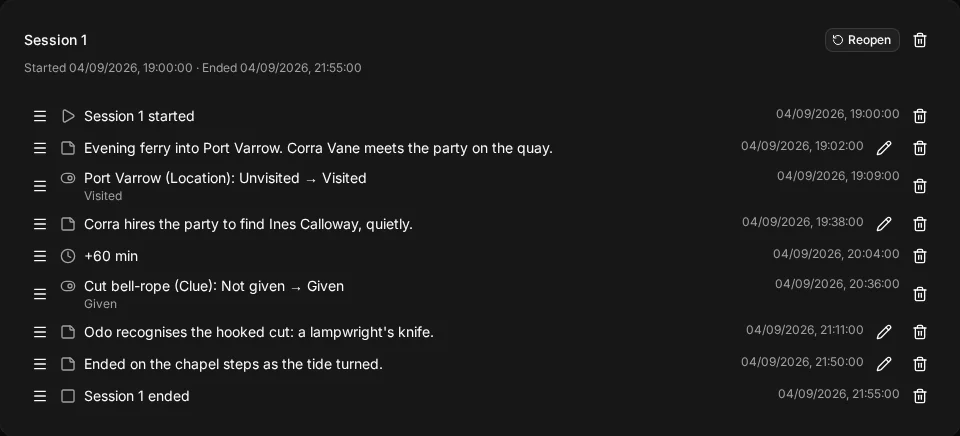
A session is one play session of a module. Its session log records what happens as you play, in order: your notes, state changes and in-game time. You can recap a session afterwards without keeping notes of your own. Past sessions are listed under Management, in Sessions.
Reminders
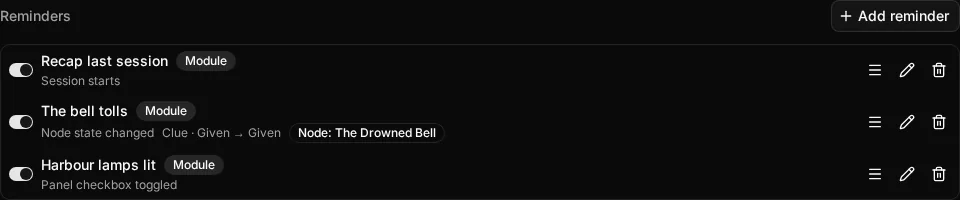
A reminder is a note that appears by itself when a chosen thing happens in play, so a prepared beat is not forgotten. Each module keeps its own list of reminders, above its sessions.
Quick notes
A quick note captures a note from the keyboard with Ctrl+G, without leaving what you are doing. Use it to jot something down in the middle of a session.
File storage
Keep images on nodes, such as a handout, a portrait or a map, and PDFs in a campaign, so your handouts and references live with your prep.
The files you store count towards the storage in your plan. See the pricing page for the limits of each plan.