 NexusDM
Map filters
A busy campaign map soon holds more than you want to look at. A map view keeps your choice of what the map shows: its filters, its appearance rules and its layout. This page is about the filters. Every map view has two of them, Include and Exclude.
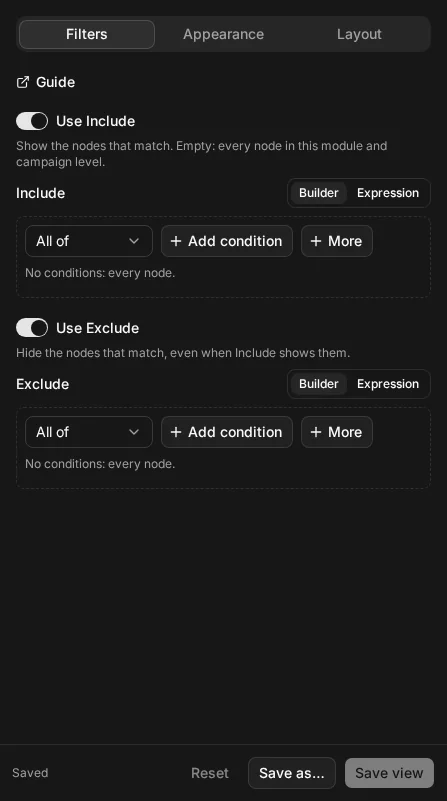
Open them with Configure view in the map’s view controls. The sheet opens on its Filters tab:
What the map starts from
A map always belongs to a module. It shows the module’s own nodes plus every campaign-level node, the ones that belong to no module. That set is the map’s scope, and the filters only ever narrow it: a filter never brings in a node from another module.
Include shows the nodes that match
The Include filter names the nodes the map shows. Every node in scope that matches stays on the map, and the rest disappear. Nodes keep their places, so a hidden node leaves a gap rather than the map rearranging itself.
When Include is empty, or switched off, it doesn’t narrow anything: the map shows every node in scope.
The examples below show each filter twice: as the builder view, the rows you click together in the app, and as the expression view, the same filter written as text. Choose which one you’d like to see; the Guide remembers your choice on every page.
Include: only the ships
Include only the nodes whose type is Ship. Everything else on the map is hidden.
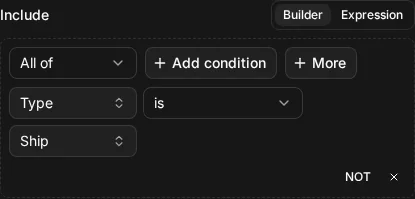
node.type = "ship"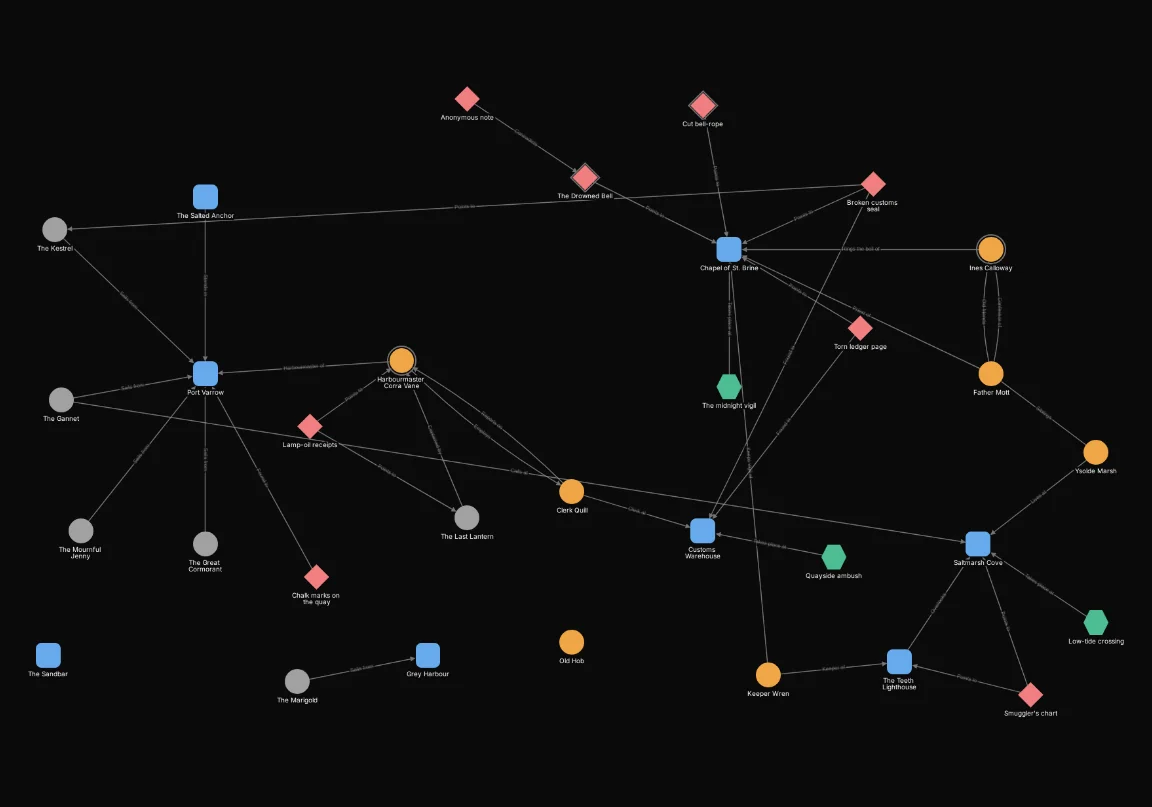
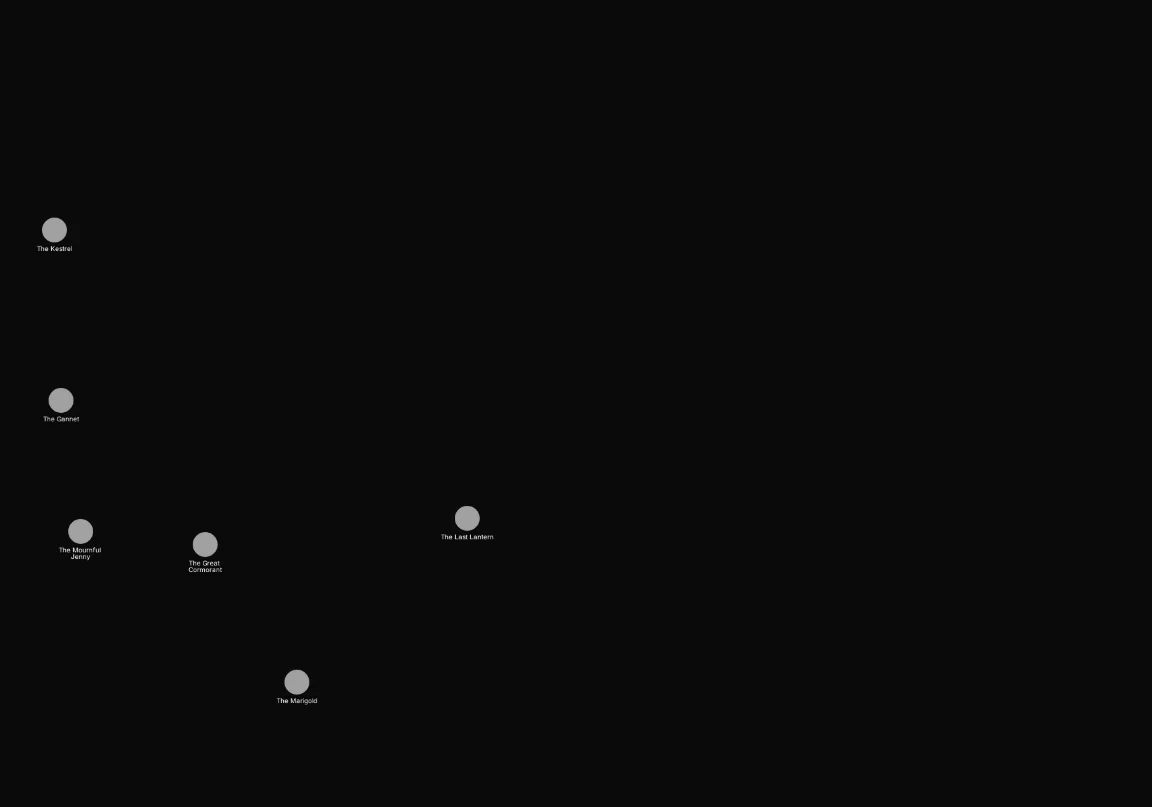
Exclude hides nodes, even when Include shows them
The Exclude filter names nodes to hide. On its own, it shows everything in scope except the nodes that match.
Exclude: everything but the clues
Exclude the clues, and the map keeps every other node.
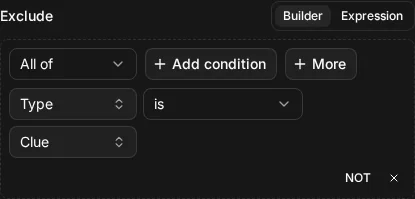
node.type = "clue"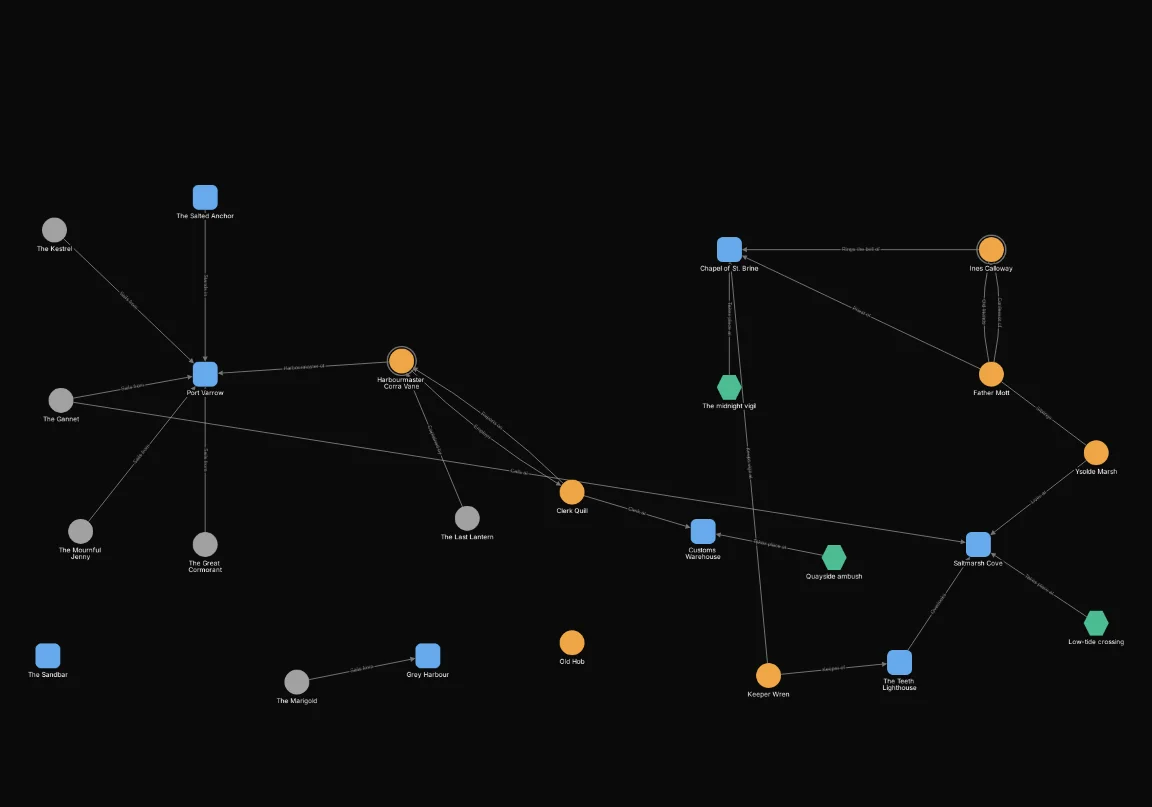
When you use both, Exclude wins: a node that matches Exclude is hidden even when Include matches it too. Include picks the nodes you want; Exclude takes some of them away again.
Include and Exclude: the ships still afloat
Include the ships, then Exclude any ship whose status is Lost. The Last Lantern is a ship, so Include shows it, but Exclude hides it.
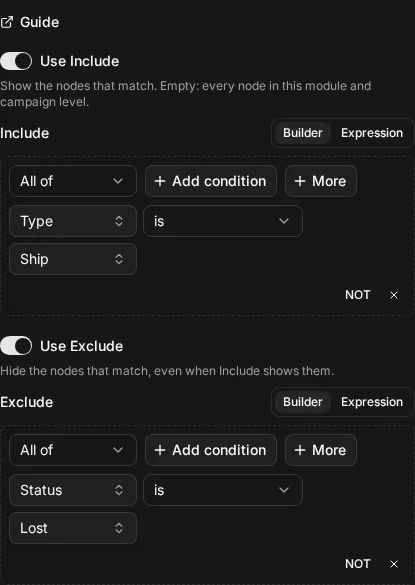
node.type = "ship"ship.status = "lost"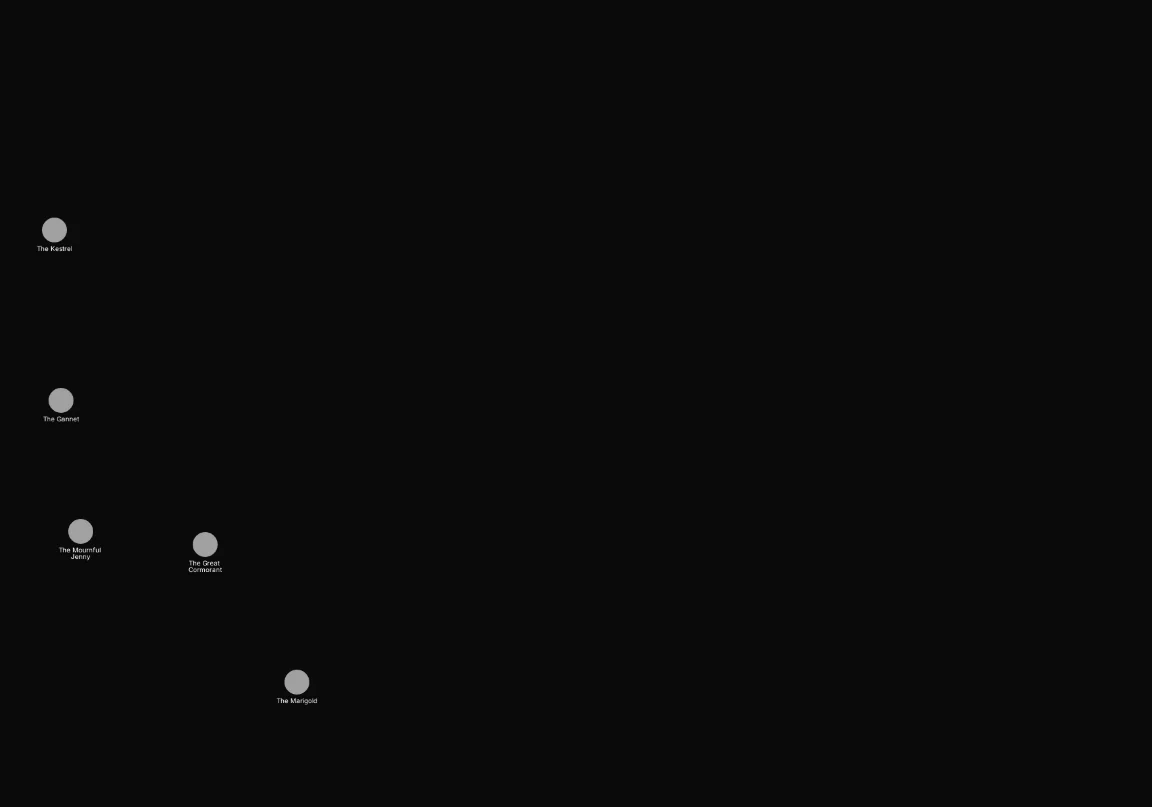
Switching a filter off
Each filter has its own switch, Use Include and Use Exclude. Switching a filter off sets it aside without deleting it: the map behaves as if that filter were empty, and the selector is still there when you switch it back on. It’s a safe way to see what a filter is doing, or to put a broken one aside while you fix it.
Builder and expression edit the same selector
Each filter holds a selector: the conditions a node must meet. You can edit it in either view, Builder or Expression, and switch between them whenever you like. They’re two ways of showing the same selector, so a change made in one is there in the other.
The builder is the easier place to start: pick a property, an operator and a value, and add groups with “All of” and “Any of”. The expression view suits longer selectors, and lets you paste one, such as an example from this Guide. Text with a mistake in it never replaces the filter already applied; the map keeps showing the last selector that worked until the text is fixed.
Saving a filter as a map view
Changes in the sheet show on the map straight away, as unsaved changes. To keep them:
- Save view saves them into the map view you have open.
- Save as… saves them as a new map view with a name you choose. The built-in Default view can’t be overwritten, so changes made on it are kept with Save as….
Your saved views are listed in the map’s view menu, so you can come back to a filter, or switch between several, at any time.
The rest of this section covers the conditions you can use, how to combine them, and how to write them as text.