 NexusDM
Nodes
Everything you track in a NexusDM campaign is a node: one character, one place, one clue, each with its own values, connections and notes. A new campaign starts empty, and the nodes you add are what the rest of the app works with: the map, the DM screen and search all show nodes.
What a node represents
A node is one thing that matters at the table. The presets that come with NexusDM suggest the usual kinds:
- Player characters: the heroes, with their player’s name and their status.
- NPCs: the people your players meet, with their occupations and motivations.
- Locations: places to explore, from a whole port down to a single tavern.
- Clues: what the players can find, and whether each has been given yet.
- Scenes: the moments you’ve prepared, such as an ambush or a midnight vigil.
- Groups: guilds, crews, families and factions.
None of these is built in. If your campaign is about ships, a ship can be a node too, with its captain, its crew and its cargo.
Node types are the templates
Every node has a node type, the template for that kind of node. A node type has a name and its fields: the values every node of the type can hold, such as a ship’s Captain or Crew. Every node also has a name of its own, so a type needs no field for it.
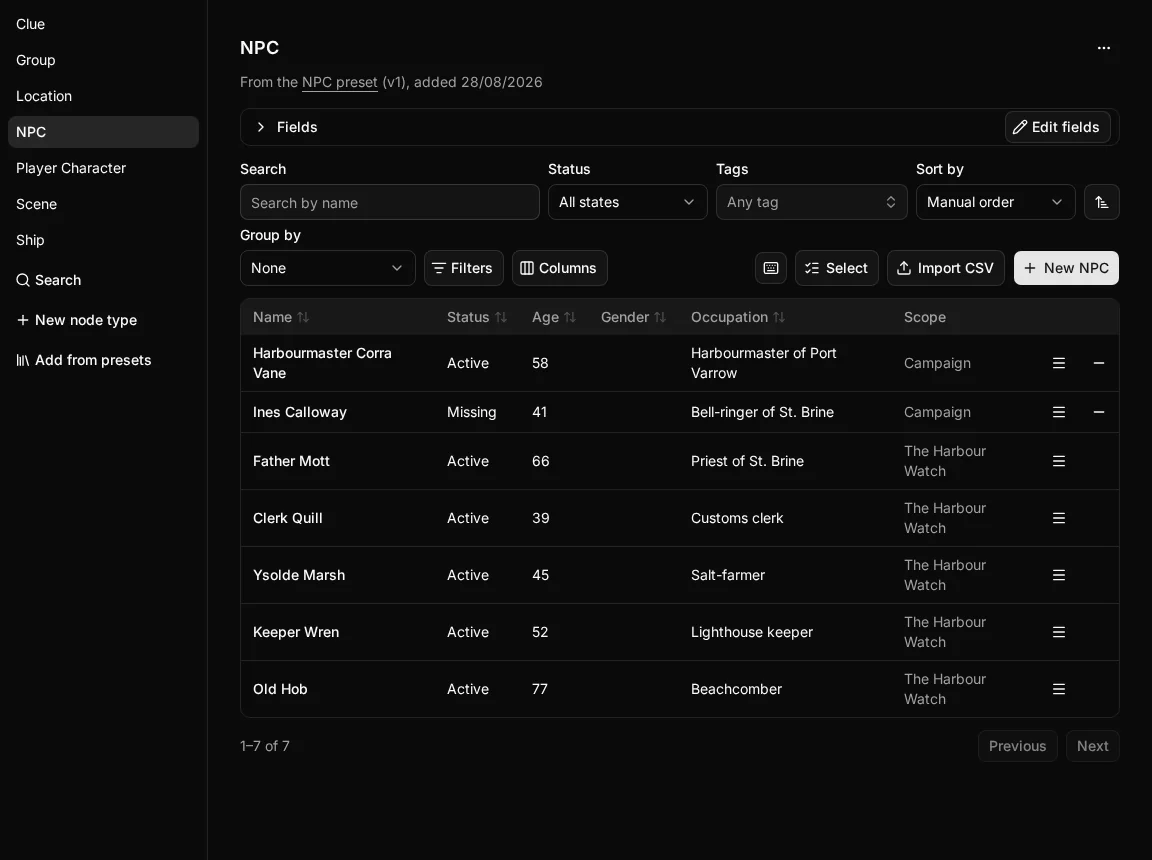
You set up node types before you add nodes, either from the ready-made presets or by building your own. They live under the Entities tab: each type is listed down the side, and choosing one shows its fields and a table of its nodes.
Campaign-level and module nodes
A campaign is split into modules, such as one adventure or one stretch of a long campaign. Each node belongs either to one module or to none:
- A module node belongs to one module and is seen only there. A clue that only matters in one adventure belongs in that adventure’s module.
- A campaign-level node belongs to no module, so every module of the campaign sees it. Your player characters, a recurring villain or the city they always return to belong here.
The table above shows both: the Scope column says Campaign for a campaign-level NPC and names the module for a module NPC. When you’re not sure, ask whether a later module will need the node. If it will, make it campaign-level.
Where nodes show up
Once your nodes exist, they appear throughout the app:
- Their type’s table, under the Entities tab, where you can sort them, filter them and edit them in bulk.
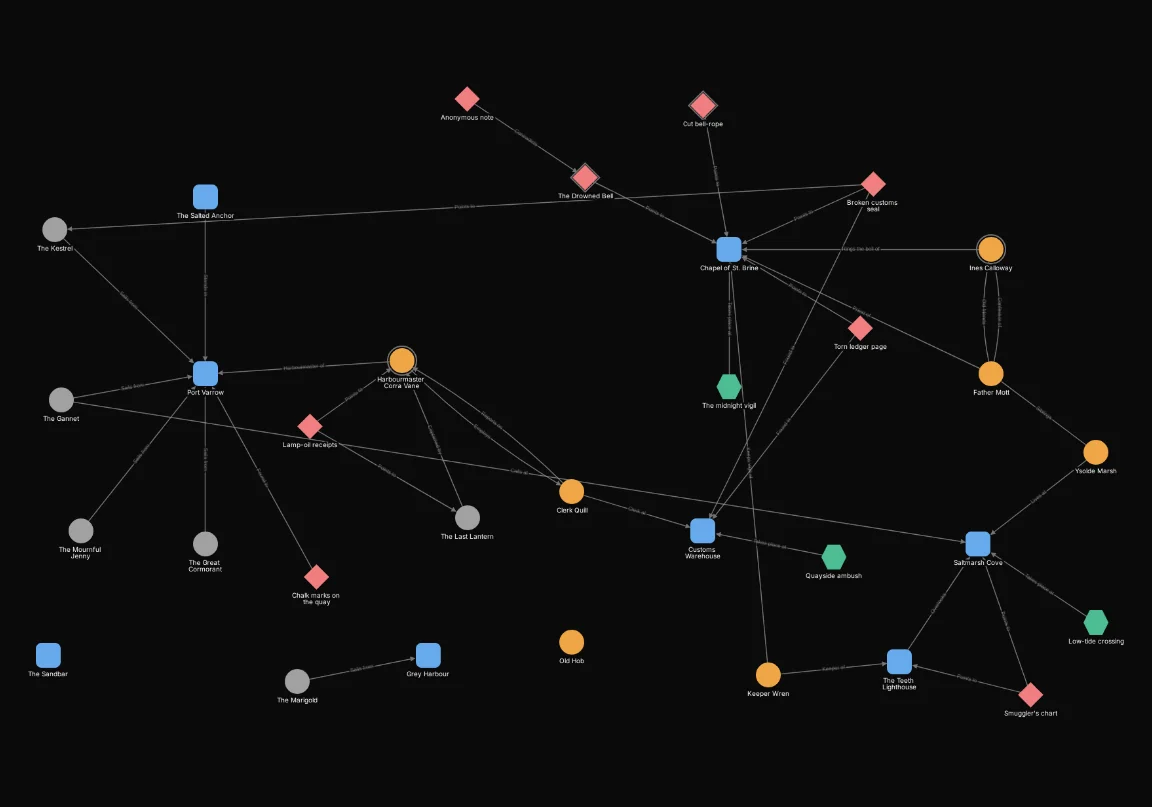
- The map of each module, which draws the module’s nodes and the campaign-level ones, joined by their connections.
- The DM screen, whose panels can list nodes, for example as a table or a turn order.
- Search, which finds nodes by their name, their text fields and their notes.
Choosing your node types
Before you build a type, decide whether the thing you have in mind needs to be one:
- A node type for things you’ll connect to other nodes, place on the map or want listed in a table of their own. Ships, factions and locations usually are.
- A field for something you’d record about a node. A ship’s status (in port, at sea, lost) is a Choice field on the Ship type, not a type of its own.
- A tag for a loose label you’d like to put on nodes of several types, such as “Act 2” or “red herring”.
If you find yourself making a node type with no fields that you never connect to anything, it was probably meant to be a tag.
More that nodes can do
Nodes have more to them, each covered in its own section later:
- Connections link two nodes, such as a clue that points to a location, and they draw the lines on the map.
- Tags label nodes across types, and map filters can pick nodes by their tags.
- Notes hold longer writing about a node, such as its history or your plans for it.
- Story beats are moments of your story. Each belongs to a module or to one node, and links to the nodes it involves.
- Behaviours let DM screen panels use a type’s fields, such as ordering the turn order by initiative.
In this section
The rest of the Nodes section covers each part in turn:
- Node types: the preset library, creating your own, and archiving.
- Fields: every field kind and its settings.
- Creating and editing nodes: adding nodes, editing them, and archiving or deleting them.
- Changing a node type: what happens to existing nodes when you change a type’s fields.
- Limits: every restriction in one place.