 NexusDM
Creating and editing nodes
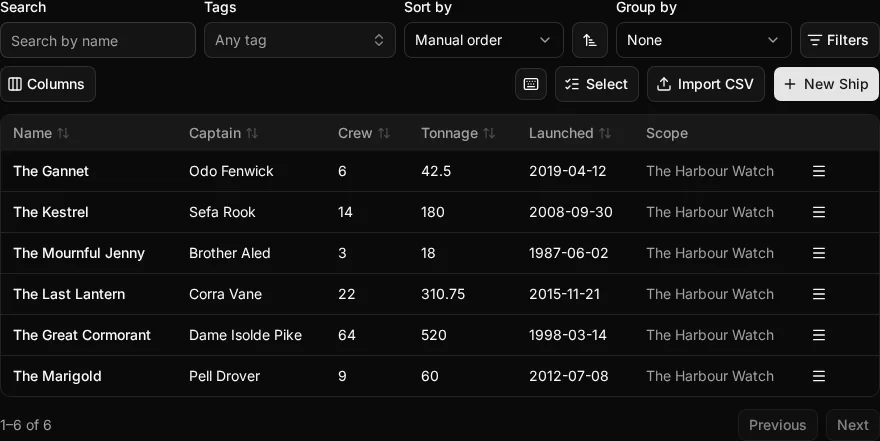
Once a node type is set up, you can fill it with nodes. This page uses the Ship type: each ship has a Captain, a Log, its Crew and Tonnage, the date it was Launched, whether it’s Seaworthy, its Status, its Ports of call and its Cargo.
Creating a node
There are two ways to create a node, and both open the same form.
- From its type’s table. Open the Entities tab, choose the type, and select the New button above its table, here New Ship. With the table open, pressing N does the same.
- On the map. Press N on a module’s map, type or choose the node type under “What do you want to add?”, and the form opens. The new node is selected on the map once it’s saved.
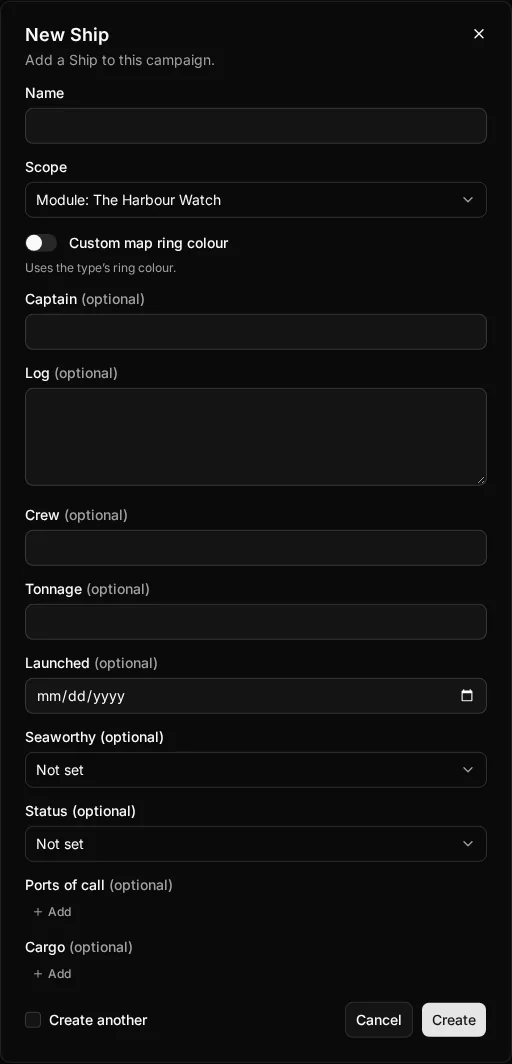
The New Ship dialog asks for:
- Name: every node has one, whatever its type.
- Scope: whether the node is campaign-level or belongs to a module (see below).
- Custom map ring colour: switch it on to give this node its own ring on the map. Left off, the node uses its type’s ring colour.
- The type’s fields, each with its default already filled in, if it has one. Fields that aren’t required can be left empty.
Choose Create to save the node. Tick Create another first to keep the dialog open for the next one, with the same scope and ring colour. That’s handy when you’re adding a whole fleet.
A type can hold nodes only once its fields are published. A brand-new type you’re still building shows only its field builder, with no table and no New button, until you publish its fields. You also can’t create nodes of an archived type, or of a type that is publishing.
Campaign-level or module
The Scope list offers two choices:
- Campaign (every module) makes a campaign-level node, which every module of the campaign sees.
- Module: and the name of the module you have open, such as Module: The Harbour Watch, makes a module node, which only that module sees.
The form starts on the module you have open, or on the campaign when no module is open. The overview explains which to choose. You can change a node’s scope later by editing it. A campaign-level node you don’t want in one particular module can be taken out of just that module with Remove from module on its node sheet: it stays in the campaign and every other module, and Add campaign Ship above the type’s table brings it back.
Editing a node
Select a node in its table, or on the map, to open its node sheet. The sheet shows the node’s type and scope, every field with its value, and the node’s connections, tags, notes and story beats below. Its actions sit under the node’s name; on a narrow sheet they show only their icons, and pointing at one names it.
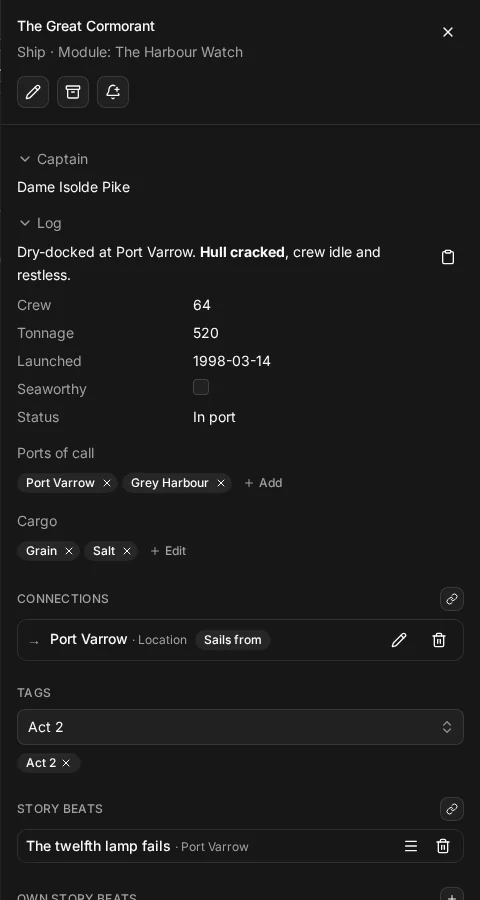
- Edit (Ctrl+E, or Cmd+E on a Mac) opens the same form you created the node with, to change its name, scope, ring colour or any field. Choose Save to keep the changes.
- A Yes / no field, such as Seaworthy, is a checkbox on the sheet, and a List, such as Ports of call, can have items added and removed right there. Each change is saved straight away.
Missing and invalid values
The form checks every value before it saves anything. When a value isn’t right, the form stays open, a message appears under that field, and the first field with a problem is selected:
- A required field left empty says Required., and an empty Name says Enter a name.
- A value outside a field’s settings says which rule it breaks. The Ship’s Crew can’t be below 0, so entering −3 says Must be at least 0. A number above a maximum says Must be at most and the maximum, and text that is too long says At most and the number of characters.
Your edit isn’t lost: everything you typed stays in the form. Correct the field and save again. If a change made straight on the sheet can’t be saved, the field keeps its old value and the sheet shows the message instead.
Archiving and unarchiving
Archive a node you’ve finished with but might want again, such as a ship that has sailed out of the story. Choose Archive (Ctrl+D, or Cmd+D on a Mac) on its node sheet, or select several rows in the table and choose Archive for them all.
An archived node is hidden from lists and the map, and so are its connections. Search leaves it out unless you tick Show archived. Reminders about it pause. Nothing is removed: its fields, connections, tags, notes and story beats all stay, and come back when you unarchive it. Right after archiving, the message at the bottom of the screen has an Undo button.
To find an archived node again, choose Archived above its type’s table. The button appears once the type has archived nodes. Open the node and choose Unarchive, or select several and unarchive them together.
Deleting a node
Deleting a node is permanent, so it takes two steps: only an archived node can be deleted. Archive it first, then choose Delete (Ctrl+D, or Cmd+D on a Mac) on its node sheet, or select it in the Archived view and choose Delete. NexusDM asks you to confirm.
Deleting a node removes, with it:
- its connections to other nodes;
- its tags (the tags themselves stay, on any other nodes that have them);
- its notes and links;
- its own story beats, with their images;
- any reminders about it or its own story beats.
Wherever the deleted node is mentioned (in another node’s text, a note, a story beat, or the campaign’s or a module’s description), the mention becomes the node’s name as plain text. Other story beats that involve the node stay, without it. Files attached to the node stay in the campaign; only the images of its own story beats go.
Deleting can’t be undone. If you might want the node back, leave it archived.
Connections, tags, notes and story beats
The node sheet is also where you connect a node to others, tag it, and add its notes and story beats. Each of these will have its own section of the Guide.