 NexusDM
Node types
A new campaign starts with no node types. Before you can add a single node, you need the types your campaign is made of. There are two ways to get them: add ready-made ones from the preset library, or create your own. Both live under the Entities tab, where each type is listed down the side and choosing one shows its fields and a table of its nodes.
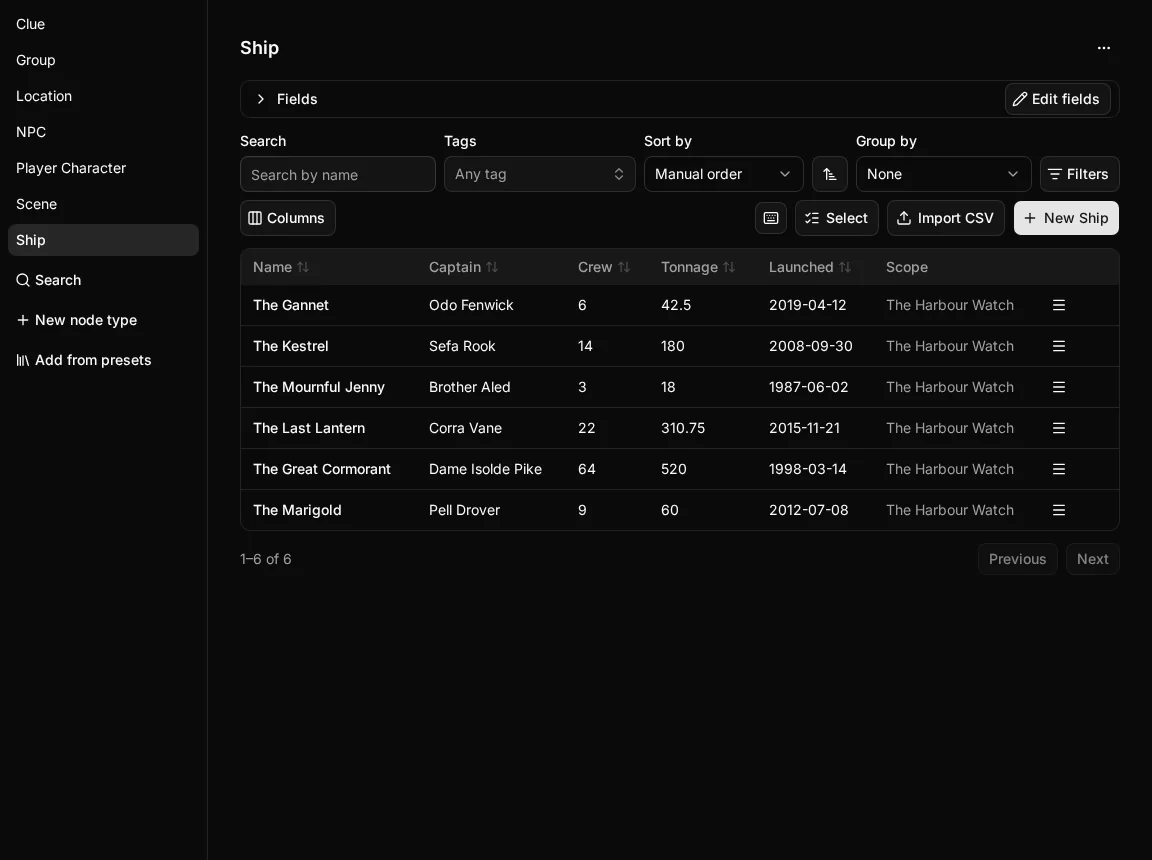
Add from presets
Add from presets opens the Preset library. It holds packs of ready-made node types, each with the fields that kind of thing usually needs. Opening the library adds nothing; you decide what to add.
- Search the library, or narrow it with the filters it offers, such as tags and categories. Open a pack’s card to see the node types and fields it brings.
- Select the packs you want. You can add up to 32 packs at once.
- Choose Review and add… to see your selection and how many node types it adds.
- Choose Add followed by the number of node types, such as Add 3 node types, to add them together. All of the selected packs’ types are added, or none are.
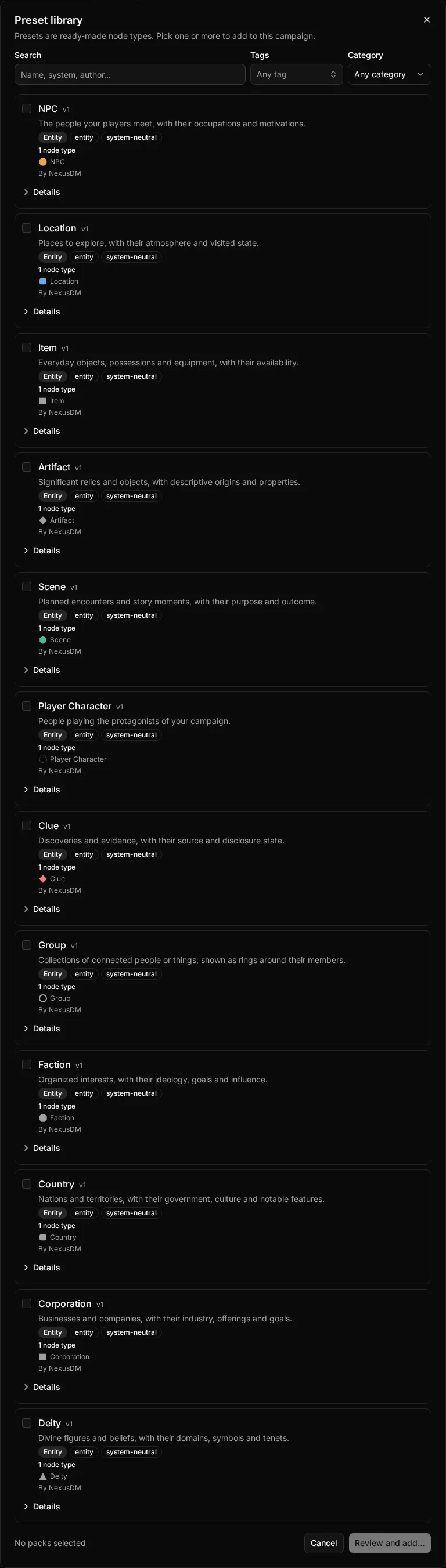
Presets never change a node type you already have. If a type in a pack clashes with one your campaign already has, nothing is added, and the library shows which packs clash so that you can deselect them. The packs change over time, so browse the library for what is on offer now.
Create your own
When no preset fits, choose New node type (in an empty campaign, Create node type) and give the type a name, such as “Ship” or “Faction”. The name is all you need to start; the type is created at once and opens in the Entities tab.
Next you add its fields: the values every node of the type can hold. The Fields page describes every kind of field and its settings.
A new type’s fields are not in use until you Publish them. Until then the type shows only the field builder, and you can’t add nodes of it. Once you publish, the type shows its fields and its table of nodes. To change a published type later, see Changing a node type.
To rename a type, open its actions menu and choose Rename. Only the name changes; its nodes, fields and links stay as they are.
Archive and restore
A type you no longer use can be tidied away without losing anything. Open its actions menu and choose Archive, then confirm.
- The type leaves the list of types, and its nodes are kept but hidden.
- Nothing is deleted. You can restore the type at any time.
Once you have archived a type, an Archived types list appears below the list of types. Open it and choose the restore button beside a type to bring it, and its nodes, back.
An archived type still counts toward the limit of 32 node types per campaign. If you reach the limit, reuse a type you already have, restoring it if it is archived, instead of creating another.
Behaviours and game systems
While building a type you will see a Behaviours section. Behaviours let DM screen panels use a type’s fields, for example to order a turn order by initiative. Presets can also be tied to a game system. Both are covered in later sections of the Guide, and you don’t need either to get started.