 NexusDM
Fields
A node type’s fields are the values every node of that type can hold. This page is the reference to keep open while you build a type: each field kind and what it holds, the settings every field has, and the two roles a field can take. Its running example is a Ship type, with a field of nearly every kind.
You add and change fields under Entities, by choosing a type and then Edit fields. Each field is a row that opens to show its settings.
The field kinds
A node type can have up to 64 fields, of these kinds:
| Kind | Holds | Its settings |
|---|---|---|
| Short text | One line of text, up to 1,000 characters | Maximum length, default |
| Long text | Formatted paragraphs, up to 100,000 characters | Maximum length, default, the Description role |
| Whole number | A whole number | Minimum, maximum, default |
| Decimal number | Any number, with or without a fraction | Minimum, maximum, default |
| Yes / no | A checkbox | Default |
| Date | A calendar date | Default |
| Choice | One option from a list you write | Options, default, the Primary state role |
| List | Several values of one kind | Item kind, maximum items, and the settings of its kind |
Every field also has the settings under Settings every field has.
Short text
One line of text, such as a ship’s Captain. A node shows it as a single-line input. Maximum length is optional and can only lower the limit of 1,000 characters.
Long text
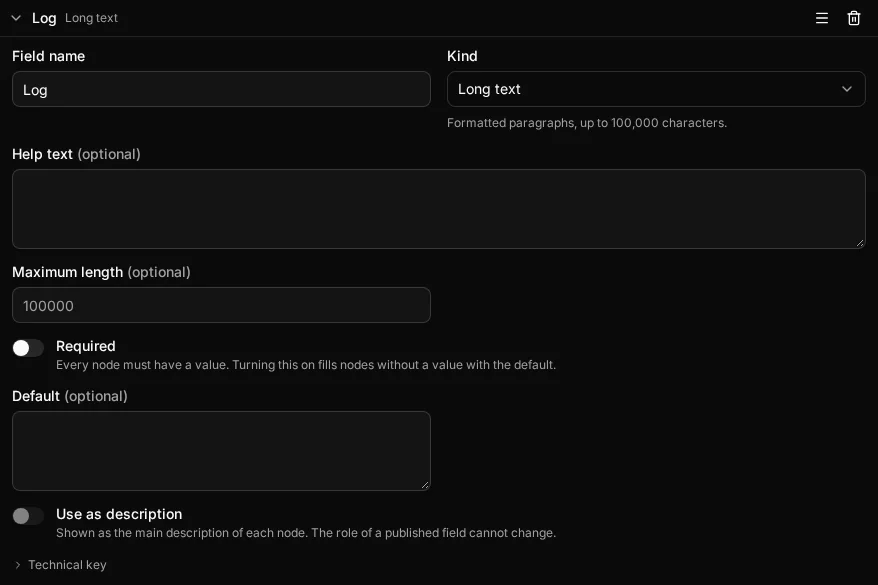
Formatted paragraphs, such as a ship’s Log. A node shows it as a larger box for writing. Maximum length is optional and can only lower the limit of 100,000 characters. A Long text field can also be the type’s Description.
Whole number
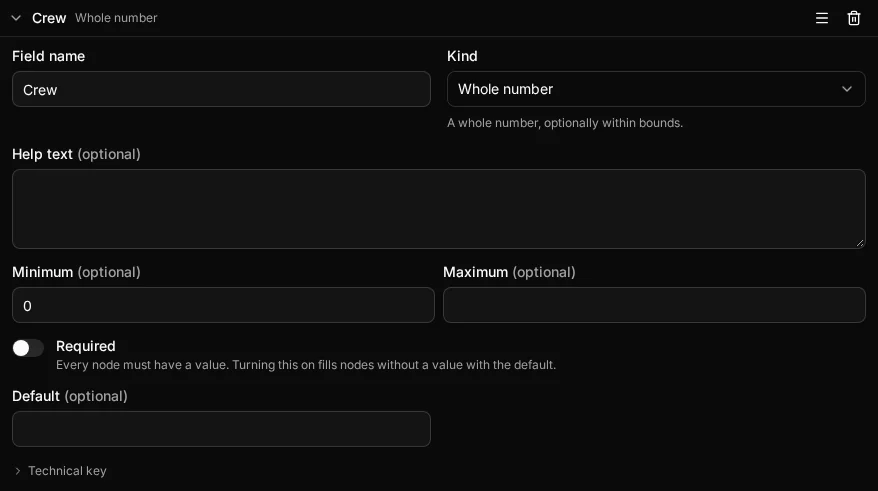
A number without a fraction, such as a ship’s Crew. Minimum and Maximum are both optional; a value outside them is refused. A node shows it as a number input that steps by one.
Decimal number
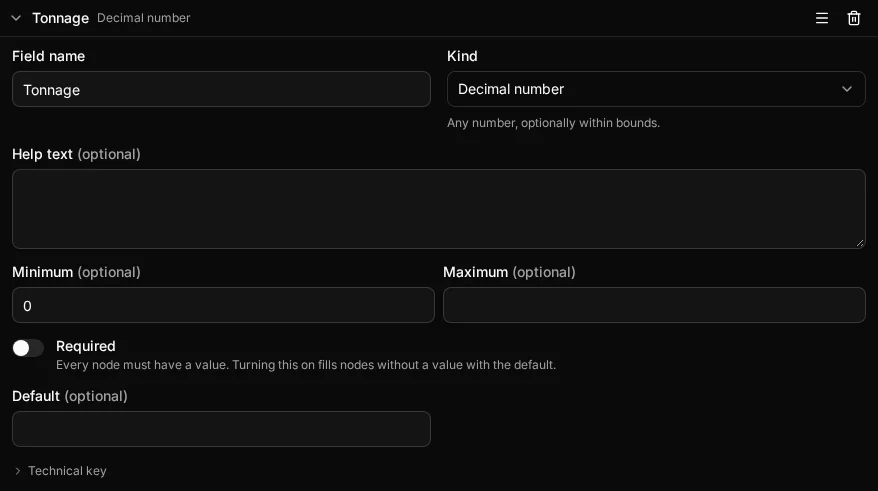
A number that may have a fraction, such as a ship’s Tonnage of 42.5. Minimum and Maximum work as they do for a Whole number.
Yes / no
A checkbox, such as whether a ship is Seaworthy. A default of Yes or No fills it in on new nodes.
Date
A calendar date, such as the day a ship was Launched. A node shows it as a date input, and the value is stored as year-month-day.
Choice
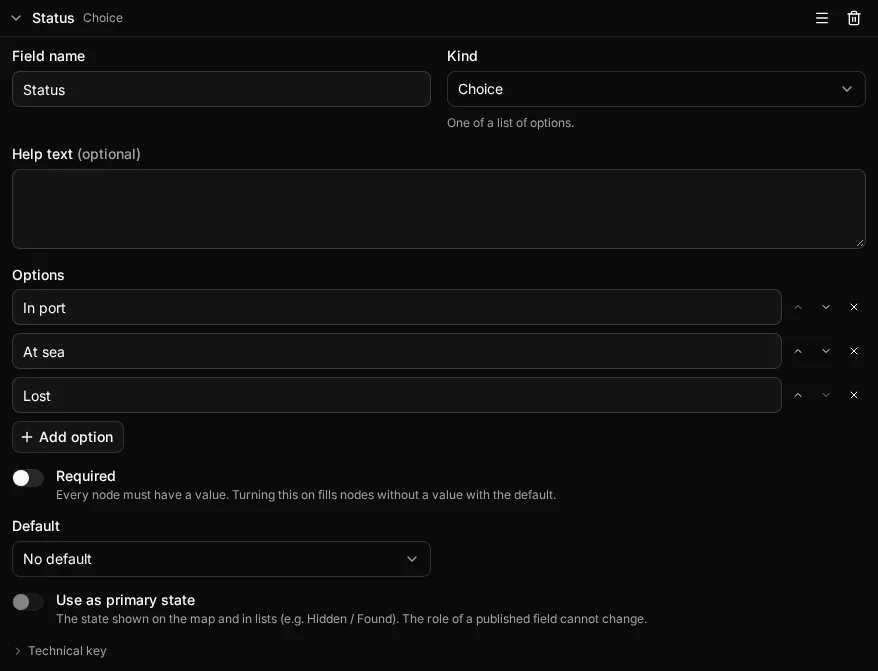
One option from a list you write, such as a ship’s Status: In port, At sea or Lost. A node shows it as a menu of the options. A Choice can have up to 128 options. Each option has a name, and the default, if you set one, must be one of them. A Choice can be the type’s Primary state.
List
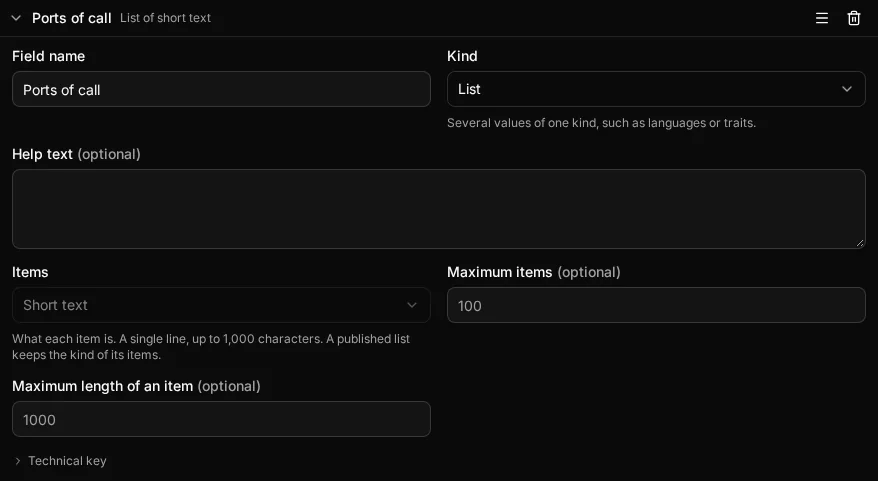
Several values of one kind, such as a ship’s Ports of call or its Cargo. You pick the Items kind, which can be any kind but a List, and an optional Maximum items, up to 100. The settings of the item kind then apply to every item: a List of short text has a Maximum length of an item, a List of whole number has a minimum and maximum, and a List of choice has the options, each of which can be chosen once. A node lets you add and remove items.
A List is never Required, has no default and can’t take a role: a node that has no items simply holds an empty list.
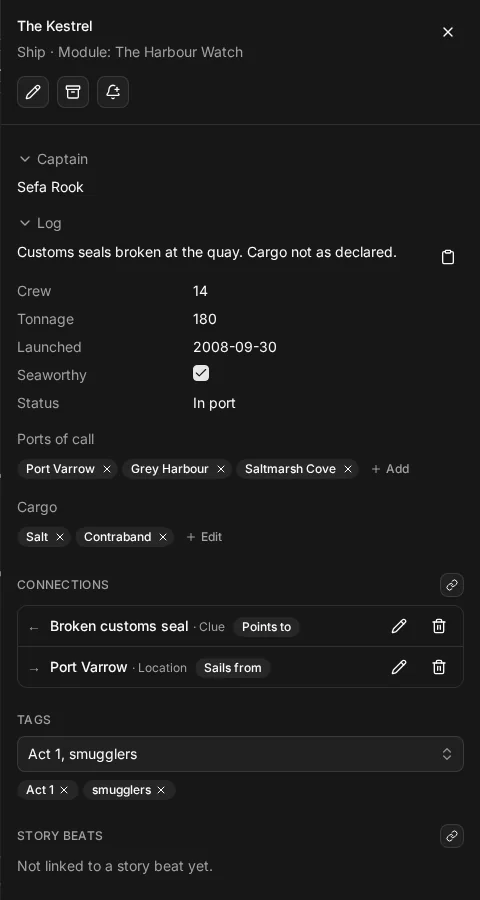
Here is a Ship with a value in each of its fields, as its node sheet shows it:
Settings every field has
- Field name. What the field is called on a node, up to 200 characters. A field needs a name.
- Kind. One of the kinds above. On a type that is already published a field can only change along the kinds its values can convert to; the builder lists those, and a note says what the conversion does. Changing a field’s kind explains each conversion.
- Help text. Optional, up to 2,000 characters. It is a hint for you and for anyone else who edits the type’s nodes, such as “Leave empty until the ship sails”.
- Required. When on, every node must have a value for the field. A Required field needs a default, so a new node always has something to start from. (On a published type, a field you add can have a Value for existing nodes instead.)
- Default. The value a new node starts with. It fills in new nodes only: changing a default later never edits a node that already exists.
Making a field Required on a type that already has nodes is the one exception: those nodes have no value yet, so the default fills them in when you publish. A field you add to a published type also gets a Value for existing nodes, which says what its existing nodes receive; leave it empty to use the default. What each change does covers every change to a published type.
The two roles
A field of the right kind can take a role, which tells the rest of the app to treat it specially. A type has at most one field of each role, and a role can’t be given to a field of another kind. Once a field is published, its role can’t be changed.
The Description role
Only a Long text field can be the Description. It is shown as the main description of each node. Give each type one: a Ship’s Log could be its Description.
The Primary state role
Only a Choice field can be the Primary state: the one field that says where a node stands. A ship’s Status or a clue’s Found / Hidden would suit it. Giving a type one does three things:
- State colours. Under Management › Entities you can give each of its options a colour, and nodes appear in that colour in lists.
- Click actions. By default, Alt-click on a node cycles its state through the options without opening it. You can bind other clicks to other changes of a Choice field in the same place.
- Filtering by state. The type’s table gets a state filter.
The field key
Each field has a field key, made from its name when you add it: “Ports of call” becomes ports_of_call. It is what filter expressions use to name
the field, as in ship.crew >= 20. You see it under Technical key in the field’s row.
A key can be changed once the field is published. Nothing is lost by it: the field keeps every value, and saved map filters follow, because they refer to the field itself rather than to its key. Expressions are simply written with the new key the next time you look at them, and the change preview lists a key change among its changes without counting any filter as affected.