 NexusDM
Changing a node type
Once a node type has nodes, you will sometimes want to change it: add a field, rename another, turn a number into text. NexusDM lets you change a published type whenever you like, and it shows you exactly what each change will do to the nodes you already have before anything happens. This page explains what to expect, so that you can make changes without fear.
The examples use the Ship type of the Lantern Coast, with its Captain, Log, Crew, Tonnage and Status fields.
Drafts and publishing
Choose Edit fields on a type to open its builder. Everything you change there is a draft. Nothing changes for the type’s existing nodes until you publish it. Choose Save draft to keep your changes and come back to them later, and Discard to throw them away.
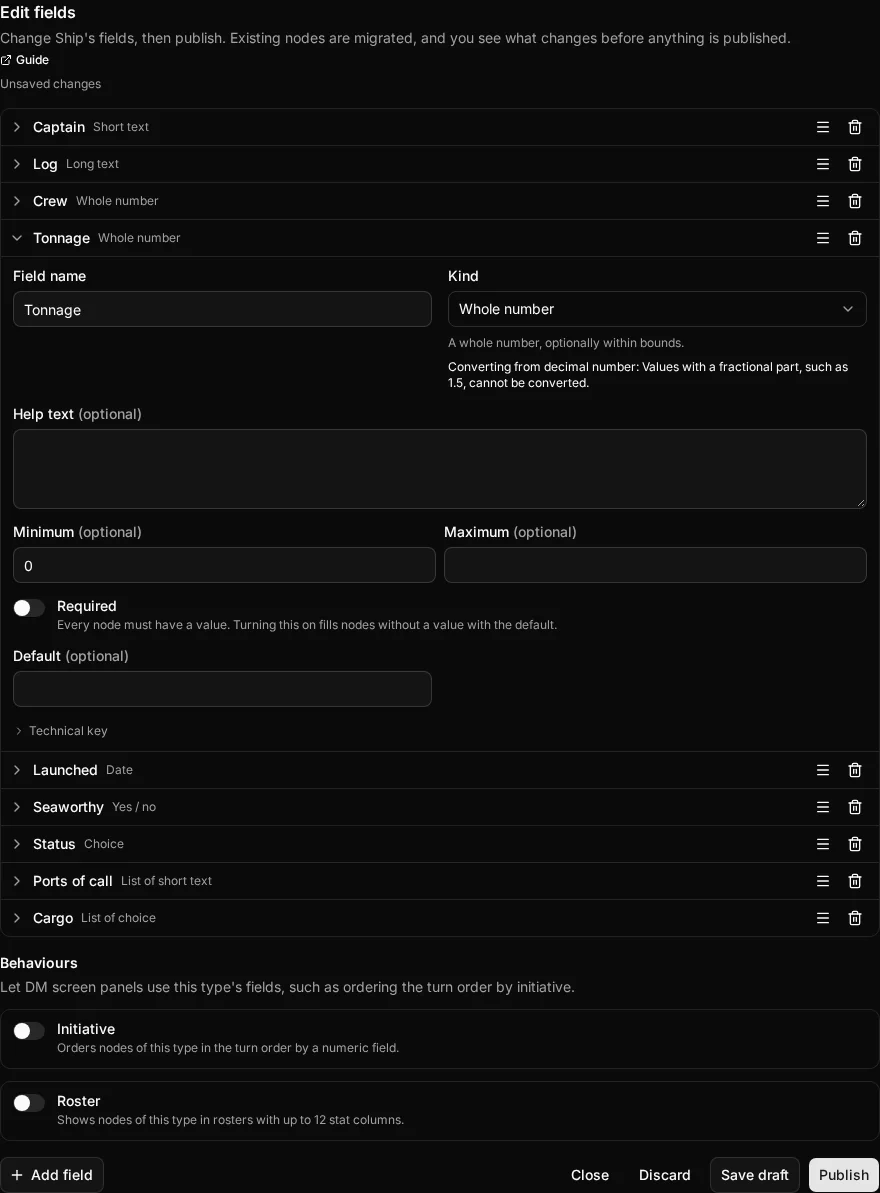
When you are ready, choose Publish. NexusDM does not publish straight away. It first shows the change preview: one line for each change, saying what it does to your nodes. You publish only when you confirm. Updating the existing nodes is publishing; the builder and the preview also call it migrating your nodes, its technical name.
What each change does
| Change | What happens to existing nodes |
|---|---|
| Add a field | Existing nodes get the value for existing nodes that you give, or else the field’s default, or else the field stays empty. A Required field needs one of the two. |
| Rename or reorder | Changing a field’s name, help text or position, or an option’s name or position, changes only how the field looks. Every value is kept. |
| Change a field’s key | Every value is kept, and saved map filters follow the field. Only expressions show the new field key. |
| Change a field’s kind | Values are converted, where the kind allows it. See Changing a field’s kind. |
| Remove a field | Its values are deleted from every node of the type, and this cannot be undone. The preview counts the nodes that lose a value. |
| Add a Choice option | Nothing changes for existing nodes. |
| Remove a Choice option | Nodes that have the option lose it, unless you move them to another option. See Mapping a removed option. |
| Change the default | Only nodes created afterwards are affected. Existing nodes keep what they have. |
| Make a field Required | Nodes with no value get the default, so the field needs a default first. Nodes that already have a value keep it. |
| Make a field optional | Nothing changes for existing nodes. |
| Change a limit | A limit is a maximum length, a minimum or maximum, or a maximum number of items. Values that already fit the new limit are untouched. A node whose value doesn’t fit is blocked. |
A limit can be changed once a field is published, but not removed. To loosen one, enter a larger value instead of an empty one.
Changing a field’s kind
Not every kind can become every other kind. The builder offers only the kinds a field can become, and explains under Kind how its values will be read.
| From | Can become | Each value converts when |
|---|---|---|
| Any kind except a List | Short text or Long text | It fits the maximum length (see below). 12 becomes “12”, Yes becomes “true”, a date stays as written, and a Choice becomes its option’s key. |
| Short text or Long text | Whole number | It is written as a whole number, such as 12. |
| Short text or Long text | Decimal number | It is a number, such as 1.5. |
| Short text or Long text | Yes / no | It is true or false, yes or no, or 1 or 0, in any capitals. |
| Short text or Long text | Date | It is written year-month-day, such as 1492-03-08. |
| Short text or Long text | Choice | It is exactly the key of one of the field’s options. |
| Whole number | Decimal number | Always, unchanged. |
| Decimal number | Whole number | It has no fraction: 12 works, 42.5 does not. |
| List | Nothing else | A List keeps its item kind. You can change its limits. |
- Yes / no, Date and Choice can become only text. A Choice cannot become a number, for example.
- Nothing else can become a List.
- A field with a role keeps its kind. The Description field (a Long text) and the Primary state field (a Choice) cannot change kind.
- Option keys are listed under the field’s Technical key, beside each option’s name.
Converting a field also converts its default, and if the default can’t be converted the change isn’t possible.
Lost values
Some changes delete or rewrite values. The change preview marks every line that does so in red, says how many nodes are affected where a count applies, and warns that the change cannot be undone:
- Removing a field deletes its values.
- Removing a Choice option deletes the option from the nodes that have it, unless you move them to another option.
- Merging options, by moving several removed options onto one, leaves the nodes unable to tell the old options apart.
- Rewriting a value in a new form, such as text “007” becoming the whole number 7, changes what is stored.
Changing a kind to text, or a whole number to a decimal, loses nothing, so the preview does not mark it.
Blocked nodes
If a value can’t be converted, or doesn’t fit the field once it has changed, its node is blocked. This happens when:
- a conversion can’t read the value: a decimal with a fraction becoming a whole number, or text that isn’t a date becoming a Date;
- a Required Choice has an option removed without moving its nodes to another option, which leaves them with no value;
- a value is longer than a new maximum length (including a Long text longer than 1,000 characters becoming Short text), or outside a new minimum or maximum.
A blocked node stops publishing. The preview names the first few blocked nodes and what is wrong with each, and its Publish button stays unavailable until none are left.
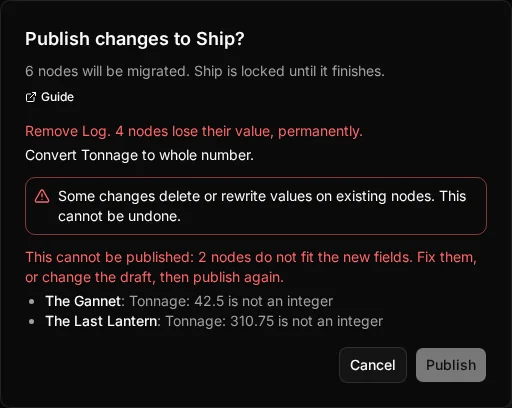
In the Ship example, changing Tonnage to a Whole number blocks The Gannet (42.5) and The Last Lantern (310.75). Removing the Log field is allowed, but the preview marks it in red, with the number of ships that would lose their log.
To fix blocked nodes, either:
- Fix the nodes first. Close the preview, edit each named node to a value that will convert (for Tonnage, 43 and 311), and then publish; or
- Change the draft so the nodes fit, for example by keeping Tonnage a Decimal number, or by raising the new limit.
Mapping a removed option
When you remove a Choice option, the builder lists it under Removed options and asks what to do with the nodes that have it. In the Values of “Lost” list beside a removed Lost option, for example, choose Move to another option to give those nodes that option, or Clear the values. If you remove the Ship’s Lost status and choose Move to At sea, every lost ship becomes a ship at sea.
If you move several removed options onto the same option, they are merged: afterwards nothing tells a node’s former options apart. The preview marks that line as a change that loses values, and you must also choose which option’s map style the merged option keeps before you can publish.
Fields that Behaviours use
A Behaviour lets the app use a type’s fields, for example ordering the turn order by a number field. A field that a Behaviour uses can’t be removed while the Behaviour still uses it. The builder marks the Behaviour with “This field was removed”, and you can’t publish until you have unbound the field: in the builder’s Behaviours section, pick another field for that role, or turn the Behaviour off. You can also restore the removed field instead.
While a type is publishing
Publishing usually takes moments. While it runs, the type shows Publishing and is read-only: you can read its fields but not change them, and nodes of the type aren’t changed until it finishes. If the page loses track of progress, it says so and offers Check again.
If publishing fails
A failed publish leaves your nodes exactly as they were, and the type’s published fields don’t change. The type shows what went wrong and when. Choose Reopen as draft to put the changes you tried to publish back in the builder, fix what the message names, and publish again.
A stale draft
A draft is based on the fields the type had when you started it. If those fields change before you publish, for example because someone else published a change, the builder says the published fields changed since your changes were started and stops you editing the draft. Choose either:
- Rebase onto current to apply your changes to the current fields, and carry on; or
- Discard to throw the draft away and start again from the current fields.