 NexusDM
Map layout
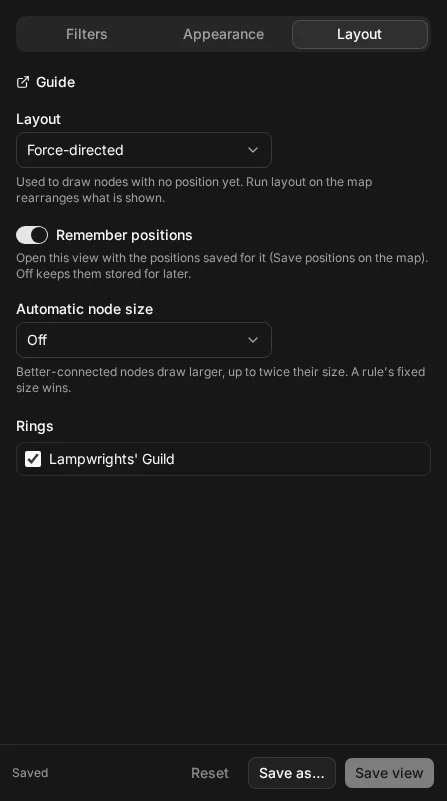
A map view keeps more than its filters and appearance rules. It also keeps how the map is arranged. Open Configure view in the map’s view controls and choose the Layout tab. It has four settings, and this section has a page for each:
- Layout and the map’s Run layout button, on this page.
- Remember positions, and the map’s Save positions button, on Positions.
- Automatic node size, on Automatic node size.
- Rings, on Rings.
The five layouts
The Layout list chooses the algorithm that decides where nodes go. Each one suits a different kind of map.
| Layout | What it does | When it helps |
|---|---|---|
| Force-directed | Pulls connected nodes together and pushes unconnected ones apart. | The general choice. Clusters show up as groups, and the map spreads out evenly. |
| Hierarchy (breadth-first) | Puts nodes in levels, working outward from a starting node and its connections. | A map that fans out from a few nodes, such as a plot with a clear start. |
| Circle | Spaces every node round one circle. | A small map where you want to read every connection without nodes in the way. |
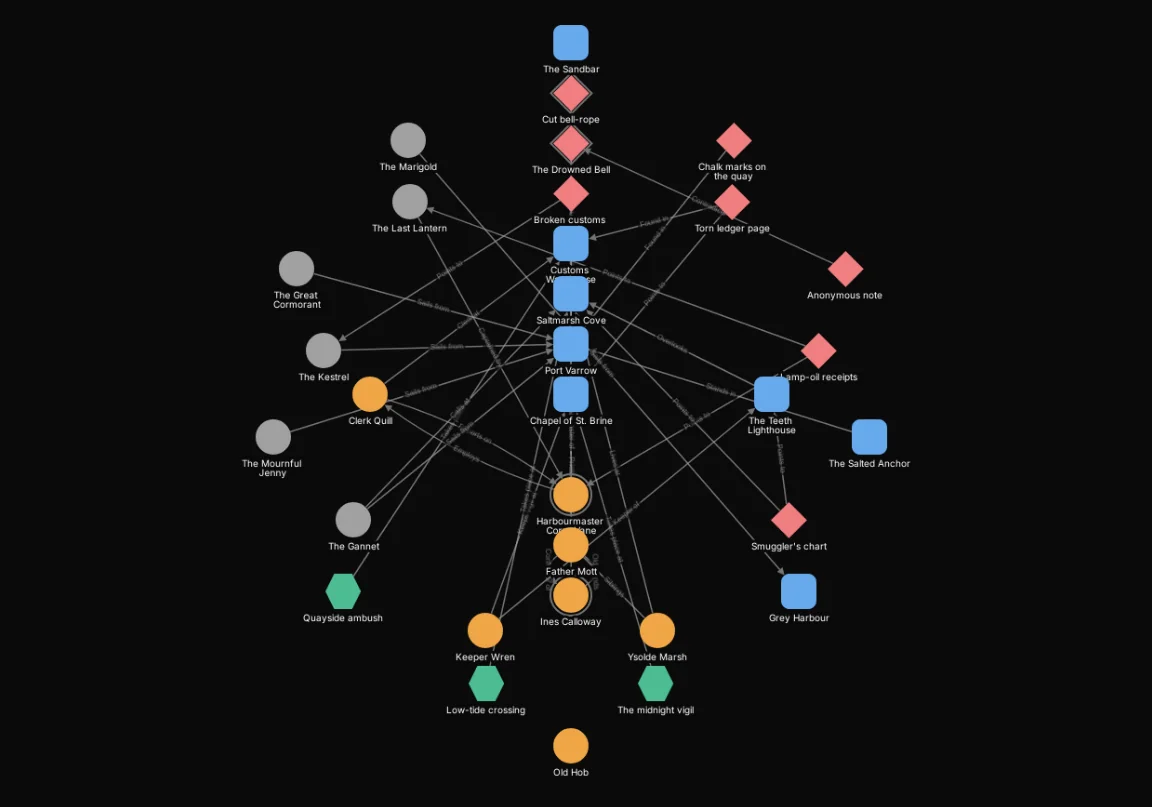
| Concentric (by connections) | Puts the best-connected nodes in the middle and the least connected in the outer rings. | Finding the hubs of a web of NPCs and places at a glance. |
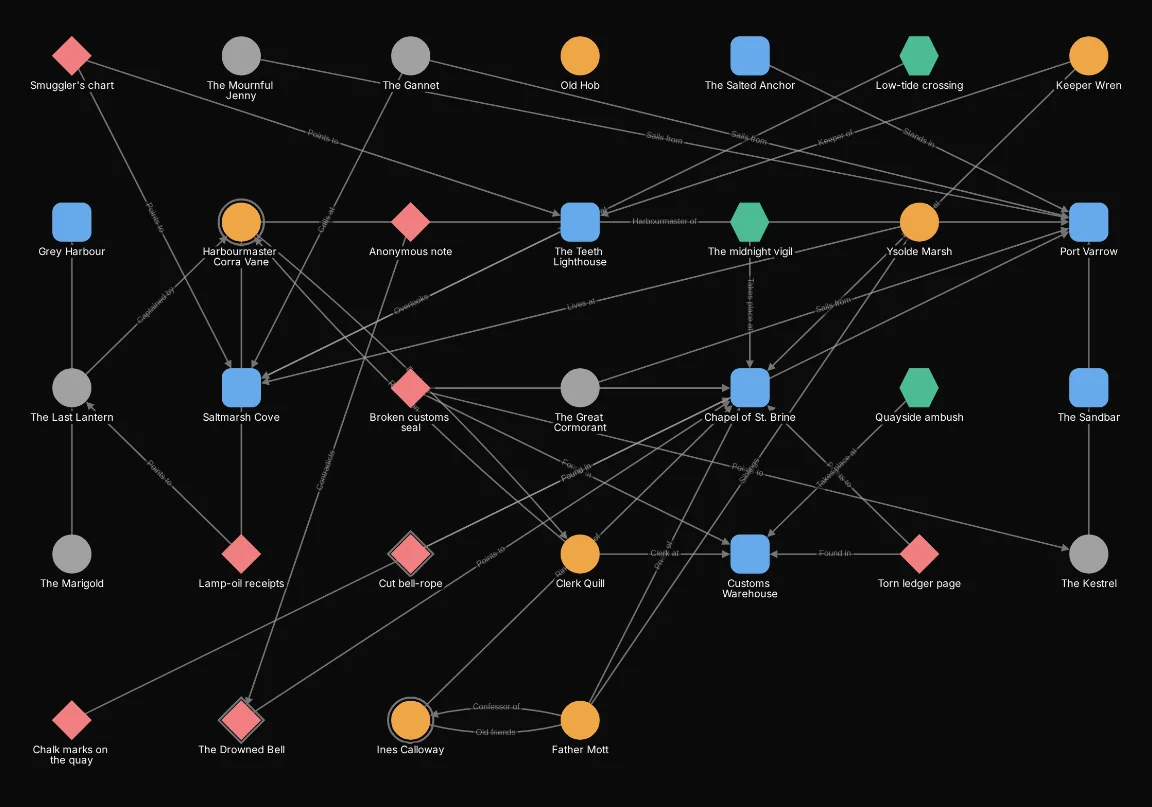
| Grid | Lines nodes up in rows and columns. | A long list of nodes you want to scan, more than a map you want to follow. |
Here is the same harbour map drawn with each layout in turn.
Force-directed
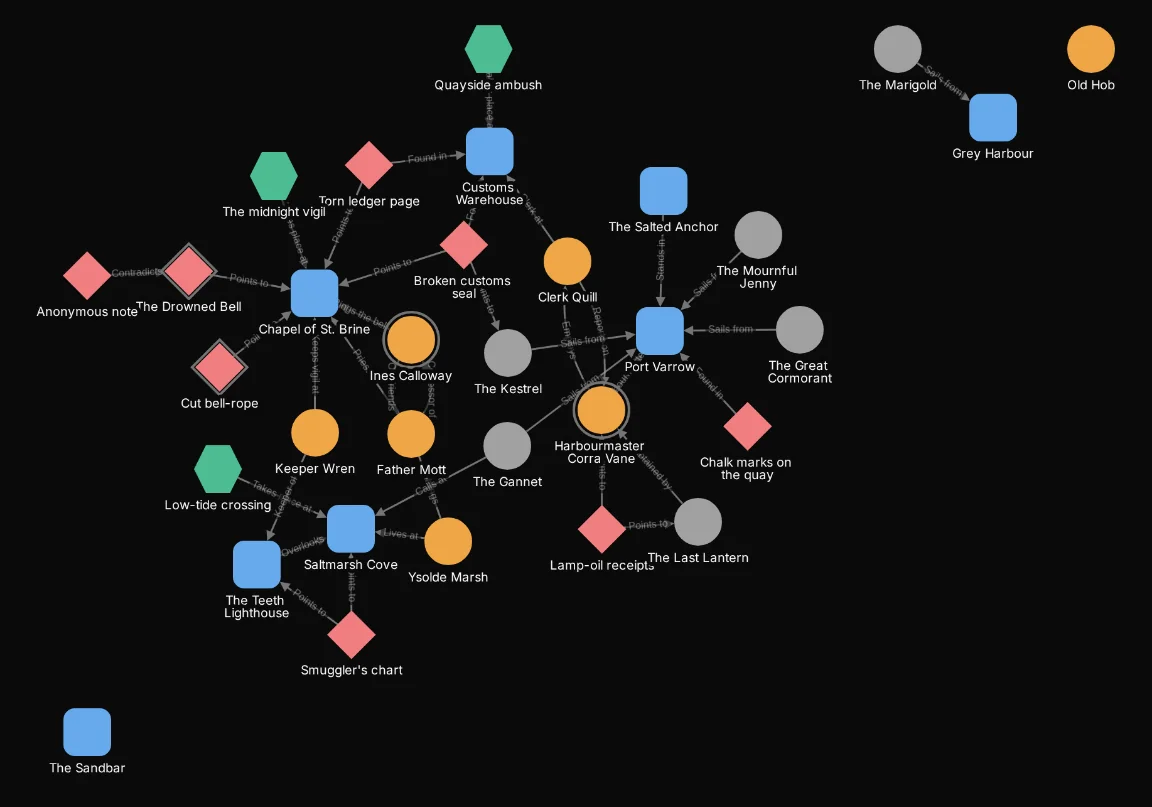
Hierarchy (breadth-first)
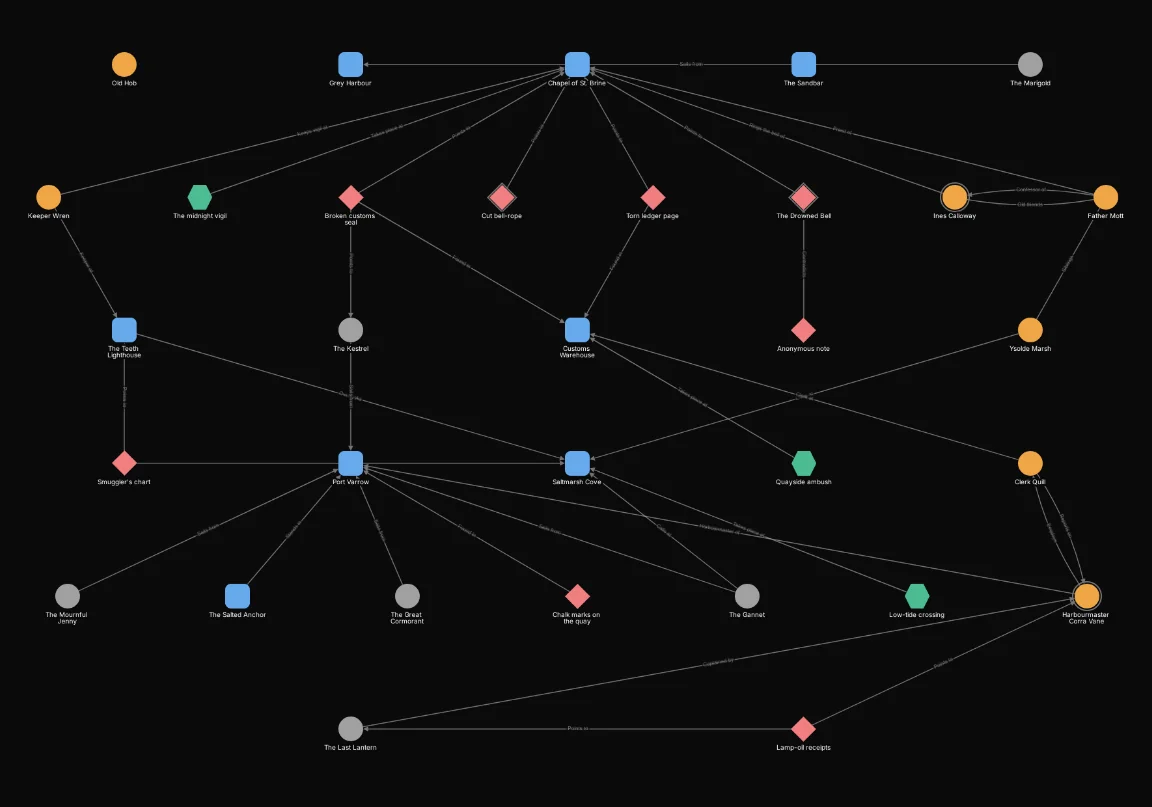
Circle
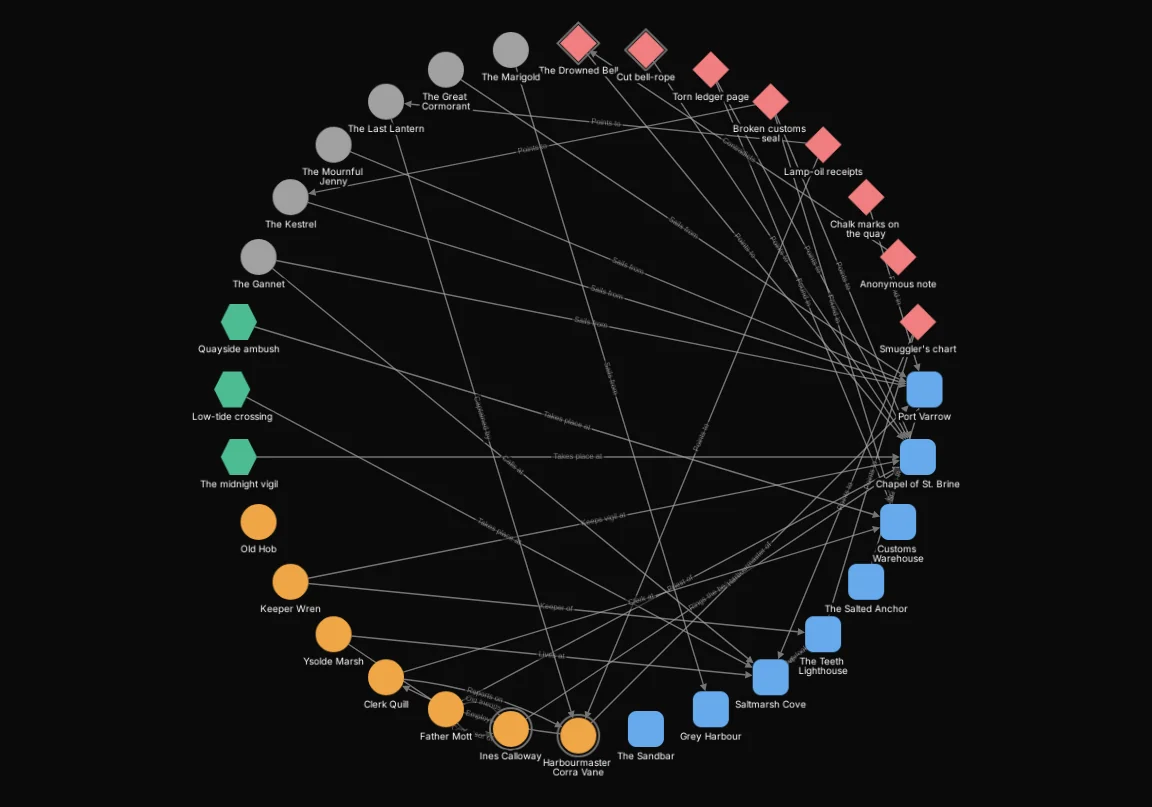
Concentric (by connections)
Grid
What the layout setting moves
The Layout setting only draws nodes that have no position yet. A map that has never been arranged is drawn with the layout you chose. A node that already has a position stays where it is, whether you dragged it there, the map was already drawn that way, or the view’s saved positions put it there. Choosing a different layout in the list therefore moves nothing on a map that is already drawn. The choice is used the next time a map has to be drawn from scratch, and by Run layout.
Run layout rearranges what is shown
Run layout is a button on the map, beside Save positions. It lays out the nodes the map is showing again with the view’s layout, and then fits the map in the window. Its tooltip names the layout it will use.

- It rearranges only the nodes that are shown. Nodes the filters hide keep the positions they had, so they come back in the same place when they are shown again.
- It moves the nodes on screen but doesn’t save anything. To keep the new arrangement for the next time you open the view, choose Save positions; see Positions.