 NexusDM
Rings
Some node types are drawn as a ring instead of as a node. You choose that in the node type’s map settings, where its render mode is Rings. A node of such a type isn’t drawn as a node. Instead, it is drawn as a coloured ring around every ordinary node it is connected to.
A faction is a good example. Connect a faction to its members, and each member gets a ring in the faction’s colour. A member of two factions has two rings. A ring adds no node and no lines to the map, so it stays easy to read.
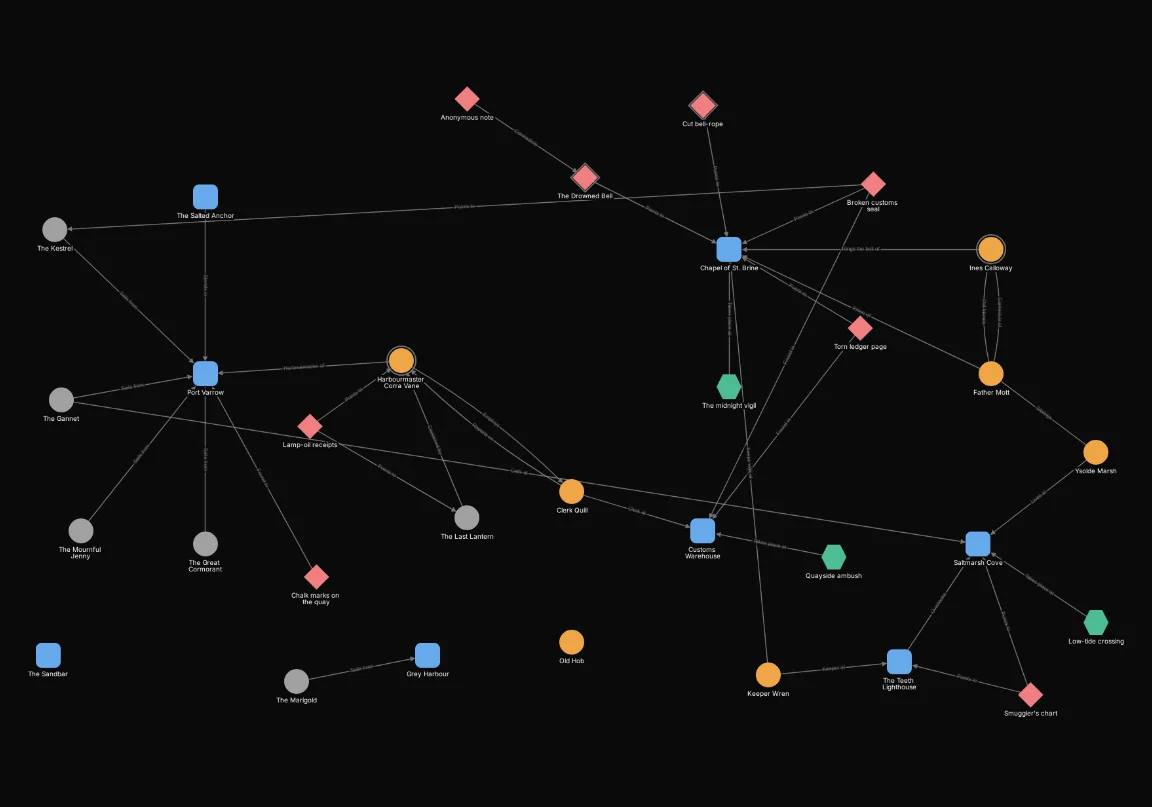
On the harbour map, the Lampwrights’ Guild is a group drawn as rings. Each of the four nodes connected to it has a ring in the guild’s colour:
The Rings list
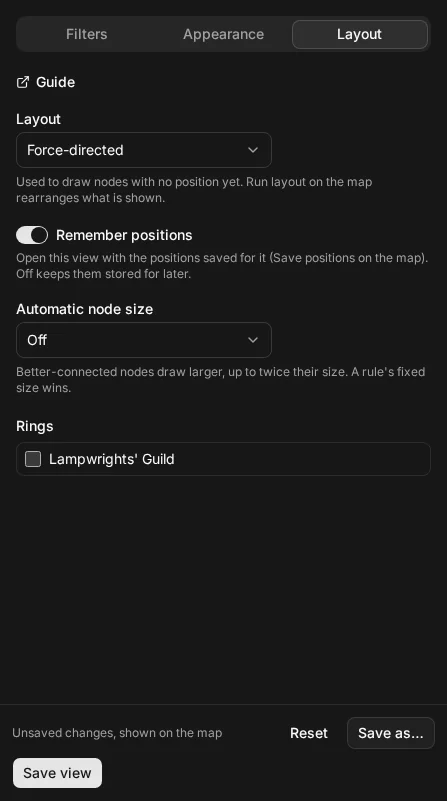
The Rings list on the Layout tab names every ring on the map’s scope, in alphabetical order. Each has a checkbox beside its name, ticked by default. When no node on the map is drawn as a ring, the list says so.
Hiding a ring
Clear a ring’s checkbox to hide it in this view.
- The ring disappears from the map.
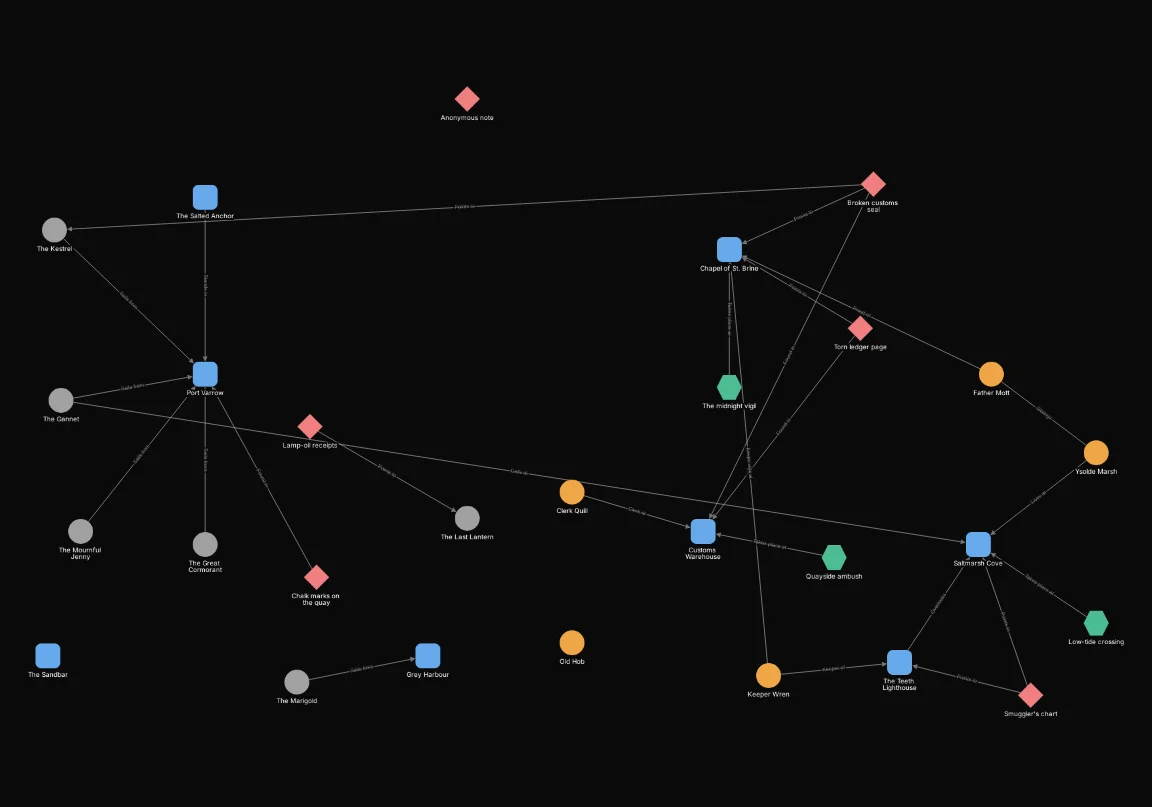
- The nodes that only that ring surrounds disappear with it. A node that also has another, visible ring stays, and so does a node that has no ring at all.
- Nothing is deleted. Tick the box again and the ring and its nodes return.
That makes a ring a quick filter: hide the Lampwrights’ Guild ring to look at the map without the nodes it surrounds, without writing an expression. The view’s filters still apply on top.
The view stores a hidden ring by the id of its node. If that node is elsewhere for a while, for example in a module whose map you aren’t looking at, the id stays in the view, and the ring is hidden again whenever the node is back on the map.