
Creating connections
The New connection dialog connects any two nodes without opening either of them first. It is the quickest way to make several connections in a row.
Opening the dialog
- Choose New connection above any node type’s table on the Entities tab.
- Choose New connection in the map’s toolbar.
- Press Shift+C on the Entities tables or the map. Pressing it while you are typing in a field types a capital C instead, so the shortcut never interrupts your writing.
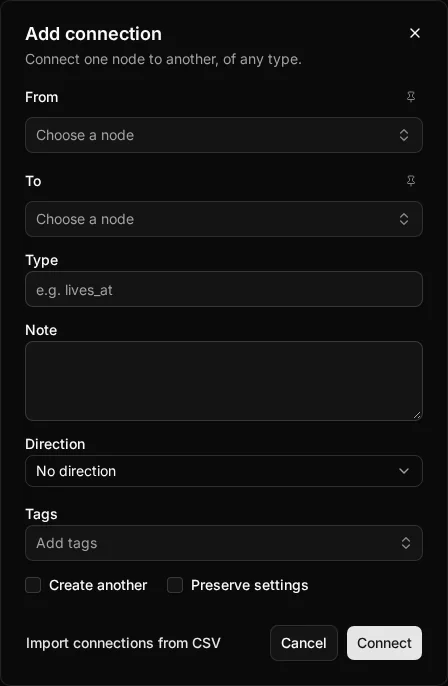
The dialog is titled Add connection. The button and the shortcut are not offered to the sample campaign’s guests or to read-only accounts, and an embedded map on the DM screen has no connection tools.
Choosing the two nodes
From and To are searchable dropdowns. Select one, type part of a name, and the list narrows as you type. They offer any node in the campaign, whatever its type or module, and each option shows the node’s type and module so you can tell two nodes with the same name apart. The Type list inside the dropdown narrows it to one node type when a name is common.
The node you choose in one dropdown is left out of the other, so you cannot connect a node to itself. The dropdowns work from the keyboard: arrows, Home, End and typing the start of a name move through the options, and Enter chooses one. If you try to save without both nodes, the dialog says which one is missing.
The connection’s details
Under the two nodes are the connection’s details:
- Type. Start typing and the dialog suggests the Types your campaign already uses, the most used first, so Located At does not turn into located_at and split your map filters. You can still type a new Type, and you can leave it blank to make a plain link.
- Note.
- Direction. It starts at No direction. Once you have chosen From, the wording of the Type sets it for you: Located At points From → To, while friend of stays undirected. A hint says where the choice came from. Choose a direction yourself and the dialog stops changing it. If you have turned direction inference off in the campaign’s settings, the dialog stays at No direction until you choose. Direction labels name the To node once you have chosen it, and read From and To until then.
- Tags. Campaign tags, and the open module’s tags, are offered before you have chosen any nodes. A module tag can only label a connection between two nodes in that module. If you have chosen a tag the pair cannot carry, it is left off that connection, with a note under the field, and it stays ready for the next pair.
Choose Connect to save, or press Ctrl+S.
Making several in a row
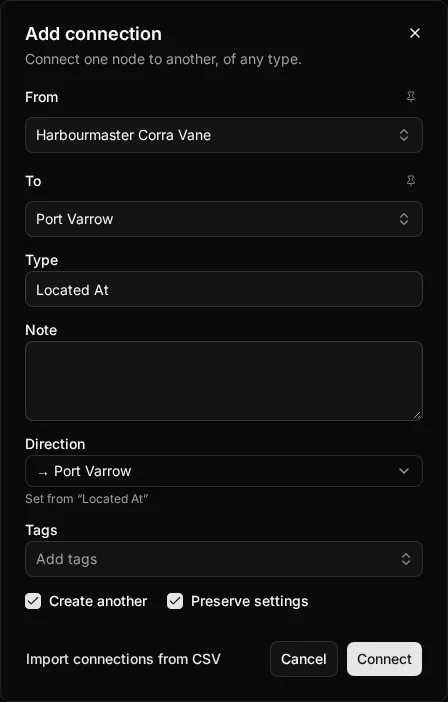
Two tick boxes at the bottom of the dialog make a run of connections quick. Create another is off each time the dialog opens. Preserve settings is off too, unless you are already holding a template, in which case it opens ticked with that template filled in.
- Create another keeps the dialog open after you save. A line under the boxes says what was just created, From and To are cleared so you cannot reuse a node by mistake, and focus moves to the first dropdown you have not pinned so you can carry on typing.
- Preserve settings keeps the Type, Note, Direction and Tags as a connection template for the next connection. It works with or without Create another, so you can close the dialog, check something, and come back to find your template waiting. The template lasts until you untick the box, leave the campaign or reload the page. Without Preserve settings, the dialog is clean again after each save.
A direction kept in the template stays as you left it, including after you close and reopen the dialog, so the Type never overrides your choice.
Pins
When many connections share one end, such as twenty NPCs who are all Located At one tavern, use the pin beside the From or To label. A pinned dropdown holds its node across saves, so you only choose the end that changes.
Other ways in
The dialog is also what a node’s sheet opens when you press C there, with From locked to that node, so everything you add appears in that sheet’s list. Create another keeps it locked. C and drag, and L, on the map fill in both nodes and show no tick boxes, so a single connection stays quick. Clicking an existing connection opens its edit form, as before.
If a connection would repeat one you already have, the campaign’s setting decides what happens: see Duplicate connections. To bring in many connections from a file, choose Import connections from CSV at the bottom of the dialog, or see CSV import. To make them by dragging on the map, see Draw mode.