
Draw mode
Draw mode turns the map into a connection tool. You set the details once, then every drag from one node to another creates a connection straight away, until you finish.
Turning it on
Choose Draw connections in the map’s toolbar, or press Shift+D. A panel opens beside the map. Draw mode works with a mouse or pen, not touch. It is not offered to guests of the sample campaign, to read-only accounts, or on a map embedded in the DM screen.
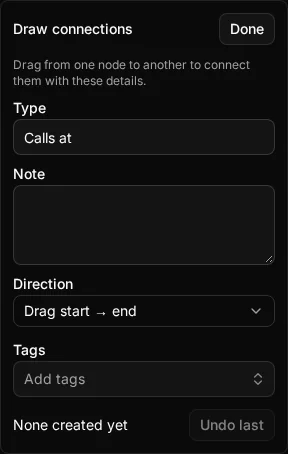
The template
The panel holds the connection template: the Type, Note, Direction and Tags that every connection you draw in this run gets. It is the same template as the Preserve settings template in the New connection dialog, so a template you make in one place is waiting in the other.
The panel’s Direction list reads from where your drag starts:
- Drag start → end, which a new run starts at, so dragging from A to B points at B.
- End → start.
- None.
If you start from a preserved template, draw mode uses its direction. Draw mode does not infer a direction from the wording of the Type.
Drawing
Drag from one node to another, with no key held and no dialog. The connection is created, the count in the panel goes up, and you can drag again. Some things to know:
- Dragging a node draws rather than moves it while draw mode is on, and the other nodes stay where they are as connections appear, so nothing shifts under your pointer.
- Dropping on empty canvas abandons the draw, so a slip creates nothing.
- Panning and zooming still work, so you can reach distant nodes in the middle of a run.
- Clicking a node selects it without opening its sheet. Clicking a connection still opens its edit form.
- From the keyboard, Ctrl+F finds a node and L picks the other end, with the template applied straight away. N keeps adding nodes, so you can add a missing node and carry on.
Count and Undo last
The panel shows None created yet, then 1 created, 2 created and so on. Undo last deletes the most recent connection this run created, and you can press it as many times as you need to walk back mistakes. It only touches connections this run created, never one that already existed, and never reverses an overwrite.
Problems
Errors appear in the panel, not as a message for every drag, so a long run stays quiet. If a template tag cannot be carried by a pair, the panel says which tag was left off the last connection.
If a drag would repeat an existing connection, the panel shows a warning that depends on the campaign’s duplicate connections setting, with Open it to see the connection that already exists. Any dialog that opens returns you to drawing when it closes.
Finishing
Choose Done or press Esc to leave draw mode and get back to normal map behaviour. Switching to another module also ends draw mode, so a run never continues in the wrong module. Your template stays for the next run.