 NexusDM
Appearance effects
A rule gives the nodes it applies to any of five effects. Each has its own switch in the rule’s Effects section; switch one on and its settings appear beneath it. Switch it off again and the rule stops setting that effect.
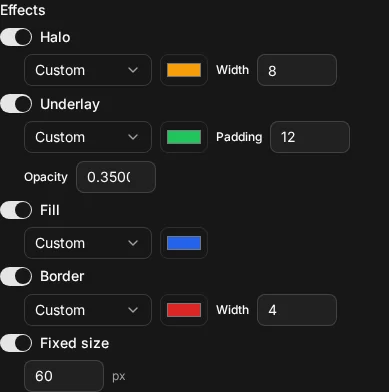
Halo
A halo is a coloured outline drawn around the node.
- Colour: Theme, or a custom colour.
- Width: 1 to 16, starting at 4.
Underlay
An underlay is a soft coloured shape drawn behind the node and larger than it, as if it were highlighted with a marker. It is good for grouping nodes by eye.
- Colour: Theme, or a custom colour.
- Padding: how far the underlay extends beyond the node, from 1 to 32, starting at 8.
- Opacity: from 0.05 (almost clear) to 1 (solid), in steps of 0.05, starting at 0.5.
Fill
A fill sets the colour inside the node. It has only a colour: Theme, or a custom colour.
Border
A border is the outline on the node itself.
- Colour: Theme, or a custom colour.
- Width: 1 to 8, starting at 2.
Fixed size
A fixed size sets the node’s size in pixels, from 12 to 96. Switching it on starts at 48.
A fixed size wins over automatic node size. The Layout tab can draw better-connected nodes larger, but a node that a rule gives a fixed size keeps exactly that size. Automatic size applies only to the nodes no rule has fixed.
Theme colour and custom colour
Every effect colour is either Theme or Custom.
- Theme follows the map’s theme, and it differs by effect. For a fill or a border it is the node’s own colour: its state colour when its state has one, otherwise its type’s colour. So one Theme border gives every node a border in its own colour. For a halo or an underlay it is the theme’s foreground colour, the colour of the map’s text, which is dark on the light theme and light on the dark one.
- Custom is one colour you choose, written as
#rrggbb. Every node the rule matches gets that colour. Choosing Custom starts from a blue,#2563eb; pick another with the colour control.
Use Theme when the effect should belong to the node or the theme, and Custom when the colour is the message, such as red for danger.
Combining effects
A rule can set any combination of effects, and they work together on one node: a halo, an underlay and a border can all show at once. A later rule replaces an effect only if it sets that same effect; see Rules and order. Selection and connection highlights are drawn over all of them, so they stay visible.