 NexusDM
Designing appearance rules with an AI assistant
You don’t have to learn the rule editor to style a whole map. The Appearance tab can copy a prompt for an AI chat assistant, such as ChatGPT, Gemini or Claude. The prompt teaches the assistant appearance rules and describes your campaign, so you can ask for a look in your own words and get back the rules to build.
What the prompt contains
Copy AI prompt puts one long piece of text on your clipboard. It has these parts:
- The selector language: every condition, operator and rule on the Writing expressions page, written for an assistant.
- The appearance instructions: rules and their order, the effects and the ranges the editor accepts, badges and counts, the shape of the answer (the recipe), what appearance can’t do, and worked recipes.
- Your campaign context: each node type with its fields, their kinds, a Choice field’s options and the default of a Choice, Whole number, Decimal number, Date or Yes / no field; the campaign’s tags and this module’s; the connection types on this map, with the types they join; and the Badge icons, the key and label of every icon in the library.
- A place for your request, at the end.
It doesn’t include your node names, field values, text defaults, notes, story beats, other modules’ tags, the colours of your types, the rules your view already has, or your uploaded icons. It does include the names of your types, fields, options, tags and connection types. You paste it into a service outside NexusDM, so read that service’s terms if those names are private.
Using it, step by step
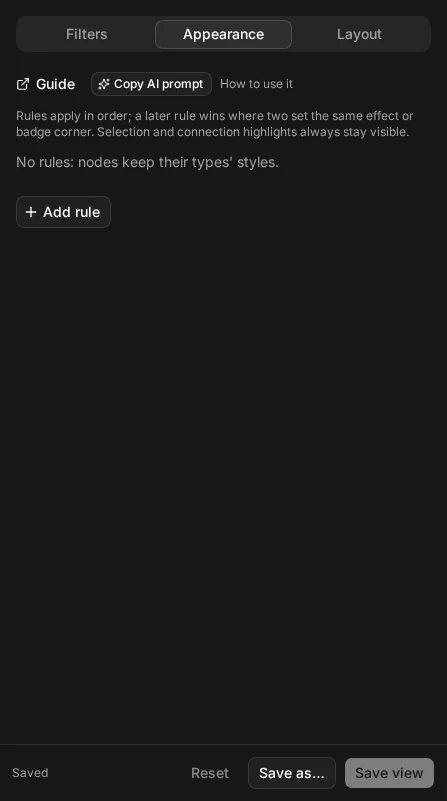
- Open the map, choose Configure view and open the Appearance tab.
- Choose Copy AI prompt, beside the Guide link. A message confirms it was copied.
- Open a new chat in your assistant: ChatGPT, Gemini, Claude or any other.
- Paste the prompt. Under My request, at the end, replace the placeholder with the look you want, then send it.
- The assistant replies with a recipe: each rule in order, with its name, its Applies to, its effects and its badges, then a sentence on what the map will show and any assumptions it made.
- Back in NexusDM, for each rule in the recipe, in order:
- Choose Add rule and give the rule the recipe’s name.
- Switch the Applies to selector to its Expression view and paste the expression. When the recipe says every node, leave Applies to empty.
- Switch on each effect the recipe lists, with its colour and numbers. A colour is Theme or
a
#rrggbbcode. - Set up each badge: its corner, its icon from the icon picker, and its count if it has one. A count has a metric, a direction, and the Counted neighbours and Counted connections expressions. Paste those into their Expression views.
- Check the map, then Save view or Save as… to keep it.
A rule with a mistake in it stops the view applying: the map keeps the previous view until you fix the rule or switch it off, so pasting a wrong answer can’t break your map. The problem is listed under the text.
An example
On the Lantern Coast, the request was “Show a bell with the number of clues found in each location, but only on the locations where at least one clue was found.” The assistant answered with one rule:
### Rule 1: Clues found here

**Applies to:**

```text
node.type = "location" AND connected_to(node.type = "clue", via: type = "Found in", direction: "in")
```

**Effects:**

- none

**Badges:**

- Top-right badge: bell (Bell), count Distinct neighbours, Incoming
  - Counted neighbours:
    ```text
    node.type = "clue"
    ```
  - Counted connections:
    ```text
    type = "Found in"
    ```

Only locations where at least one clue was found show a bell, with the number of distinct clues found there.

Assumption: you named no corner, so I put the bell in the top-right.
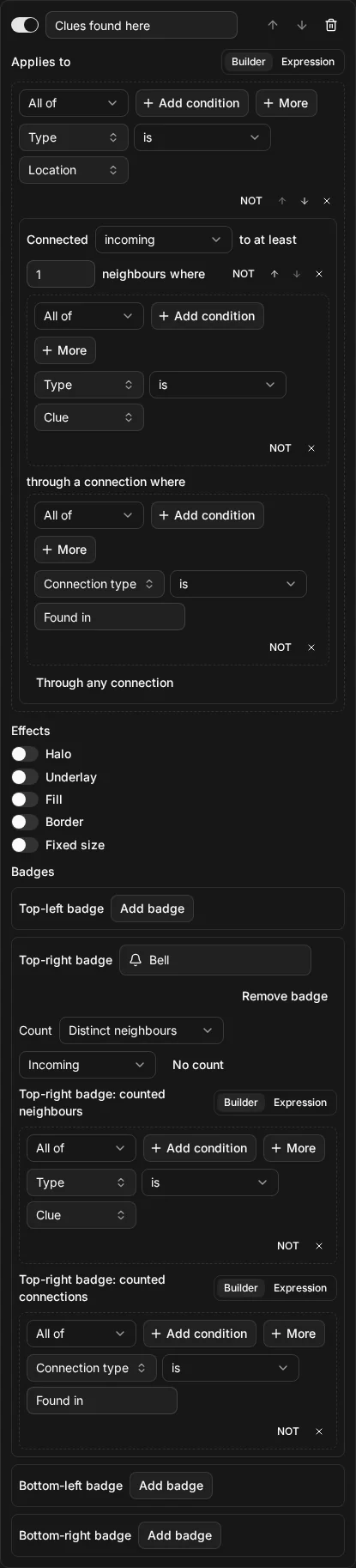
To build it, add a rule named Clues found here and paste the Applies to expression. Leave
every effect off. Open the Top-right badge, pick the Bell icon, switch on the count, and
choose Distinct neighbours and Incoming. Paste node.type = "clue" into Counted
neighbours and type = "Found in" into Counted connections.
Notice that everything the request said about what is counted (“clues”, “found”) is in the count’s two expressions. The Applies to only keeps the locations that have at least one such clue, because a badge shows on every node its rule matches. The assistant also named the corner it chose, since you didn’t.
An assistant's answer to "a bell with the number of clues found in each location, only where at least one was found"
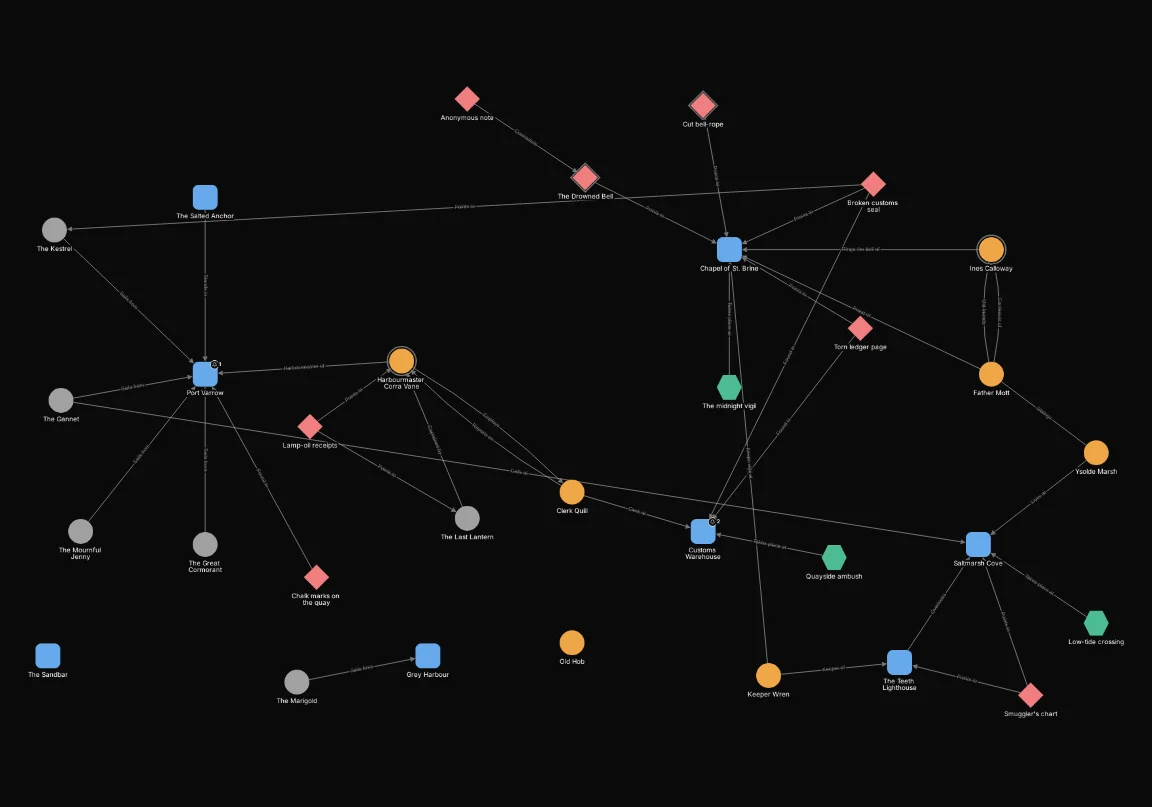
Built as described, the rule gives a bell to the locations with at least one clue found there: the Customs Warehouse, where the Torn ledger page and the Broken customs seal were found, shows 2, and Port Varrow, where the Chalk marks on the quay were found, shows 1. Every other node looks as it did.
node.type = "location" AND connected_to(node.type = "clue", via: type = "Found in", direction: "in")node.type = "clue"type = "Found in"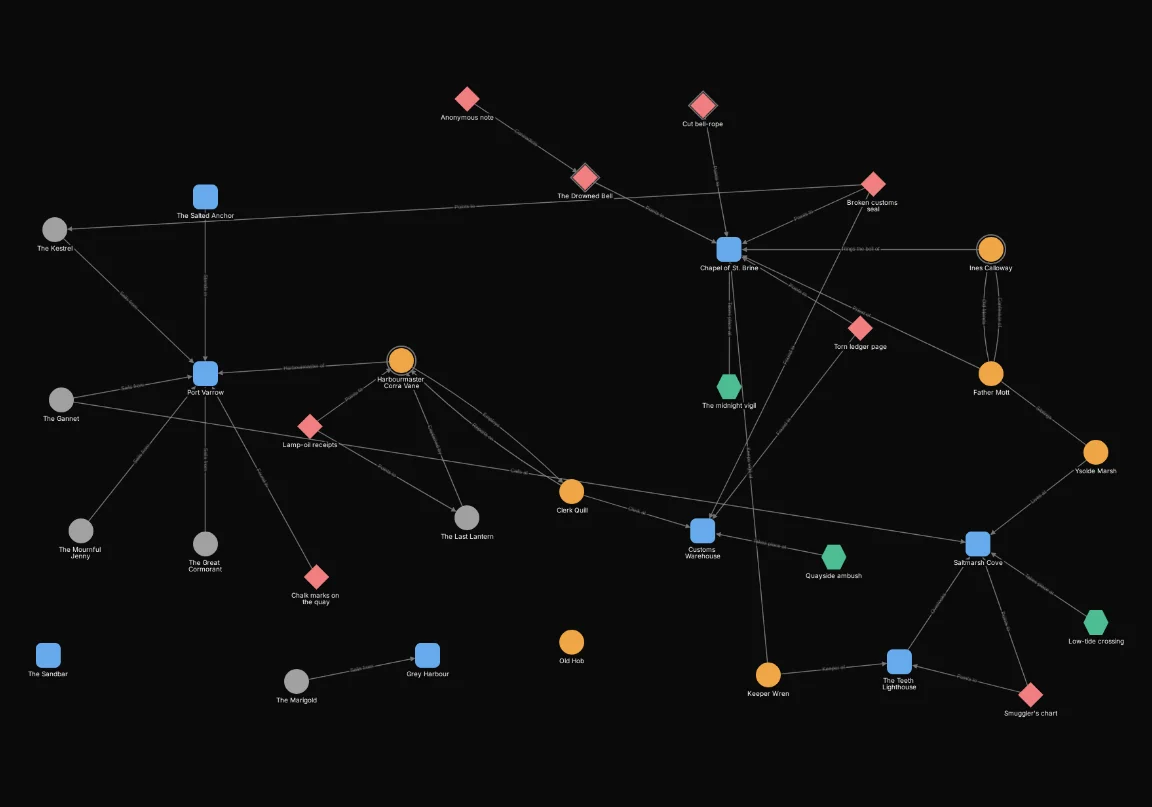
When the answer is “Not possible”
When a request can’t be done, the assistant doesn’t write a rule that only comes close. It answers with a line that starts Not possible: and gives the reason, with no expression and no rule to build. It may suggest, in words, a request that would work. For example, “Make the Points to connections thicker and orange.” gets:
Not possible: appearance rules style nodes only, and nothing can change the thickness or colour of a connection. You could ask for a halo or a badge on the clues that point at something instead.
A request is not possible when it needs an effect or badge the editor doesn’t have (connection colours, labels, animation, another node shape), an icon that isn’t in the library, a number or colour the editor won’t accept, a count of nodes two steps away, a condition the language doesn’t have, or something your campaign doesn’t have. Hiding or showing nodes isn’t appearance either: that is what the Filters tab, and its own AI prompt, are for.
One particular story beat or node is different. These are written by id, which the prompt
doesn’t contain, but the request is still possible. The assistant writes the rest of the rule and
names the condition to add in the builder. For “Give every clue in the story beat “The twelfth
lamp fails” a #ef4444 border, width 3.”, the Applies to is node.type = "clue" and the assistant
adds this note:
In the builder, add a Story beats has “The twelfth lamp fails” condition to this Applies to, joined with AND. The clues in that beat then get a red border.
Paste the expression, switch to the builder and add that condition.
Asking well
- Describe the look, not the settings. “Make the missing NPCs stand out in red” works better than naming halos and widths. Say a colour, width or corner when you care which one you get; otherwise the assistant picks one and tells you.
- One look per chat. Start a new chat for an unrelated look, so earlier answers don’t steer the next one.
- Rules add to the ones you have. The recipe’s rules are added at the end of your list, so they win where they overlap rules already there. Mind the order, and move a rule up if an existing rule should win instead.
- Say what you count. For a badge count, name the kind of neighbour and the kind of connection. “Clues found here” counts differently from “everything connected here”.
- Copy again after changing types. The prompt is a snapshot of your types, tags, connection types and icons when you copied it. After adding a field, a tag or a connection type, copy a fresh one.
- Paste errors back. If the Expression view shows a problem, paste the message into the same chat. The assistant corrects the expression.
What it can’t do
It can’t use your uploaded icons: the prompt doesn’t list them. Ask for the icon in words, such as “my anchor icon in the top-right of every ship”, and the recipe’s badge line says “your uploaded icon of an anchor”. Pick it yourself in the badge’s icon picker.
Everything else it can’t do is in the Not possible answers above. The assistant can still be wrong, so check that the map shows what you asked for, and read its sentence about what the map will show. The Examples page has rules you can compare with.