 NexusDM
Appearance rules and their order
This page covers the rules themselves: how to add and arrange them, how a rule picks its nodes, and what happens when two rules disagree.
Adding, naming and arranging rules
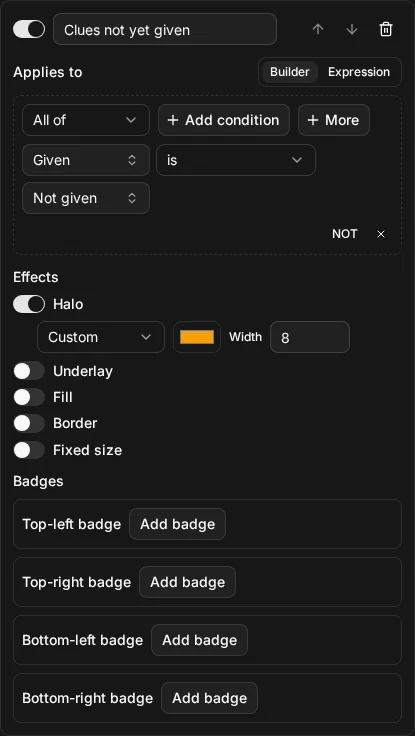
Open the Appearance tab of Configure view and choose Add rule. The new rule is added at the end of the list, switched on, and applies to every node until you say otherwise.
Each rule has, along its top row:
- A switch, labelled “Use” and the rule’s name. Switching a rule off sets it aside without deleting it, so you can switch it back on later. A rule that is off does nothing.
- A name of up to 100 characters. Leave it empty and the rule is called Rule 1, Rule 2 and so on, by its position.
- Move up and Move down, which swap the rule with its neighbour. The first rule can’t move up and the last can’t move down.
- Delete, which removes the rule.
While the text of a rule’s expression is still unfinished or has a mistake, moving and deleting rules are paused. Fix the text or discard it first, so the text stays with its rule.
A view can hold at most 64 rules. At the limit, Add rule is disabled and its hint says so.
Which nodes a rule applies to
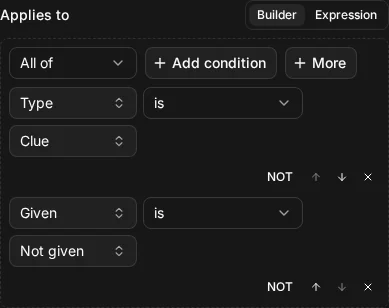
Applies to is a selector, written in the builder or the expression view exactly as for Include and Exclude. The Builder and Expression buttons above it show the same selector two ways. The Guide pages on conditions, groups and writing expressions apply here unchanged.
A rule with an empty Applies to applies to every node in the map’s scope. That is useful for a rule that sets a base look for the whole map, with later rules picking out the exceptions.
A later rule wins
Every enabled rule applies, from the top of the list down. Where two rules set the same effect on the same node, the later rule wins. This is worked out for each effect separately, and for each badge corner separately, so a later rule only replaces what it sets and leaves the rest alone.
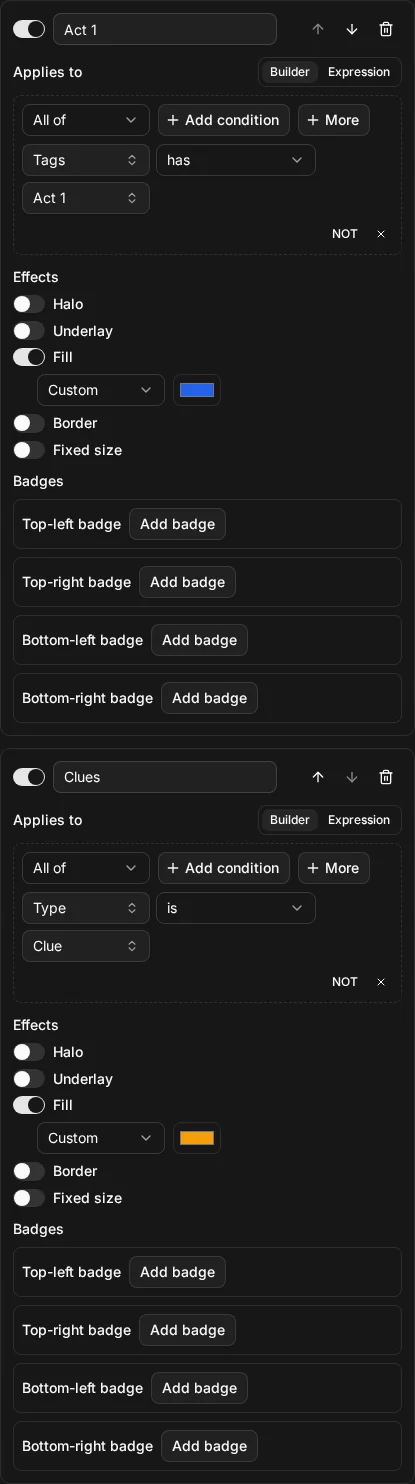
Here is an example on the Lantern Coast, with two rules that both set a fill:
- Act 1, which applies to
node.tags HAS "Act 1". It fills the node blue. - Clues, which applies to
node.type = "clue". It fills the node amber.
Two rules where order decides: Act 1 nodes filled blue, then clues filled amber
Act 1 nodes turn blue and clues turn amber. The Drowned Bell and the Cut bell-rope are both: they are clues tagged Act 1. They are amber, because Clues is the later rule and sets a fill. Every other Act 1 node is blue, and every other clue is amber.
node.tags HAS "Act 1"node.type = "clue"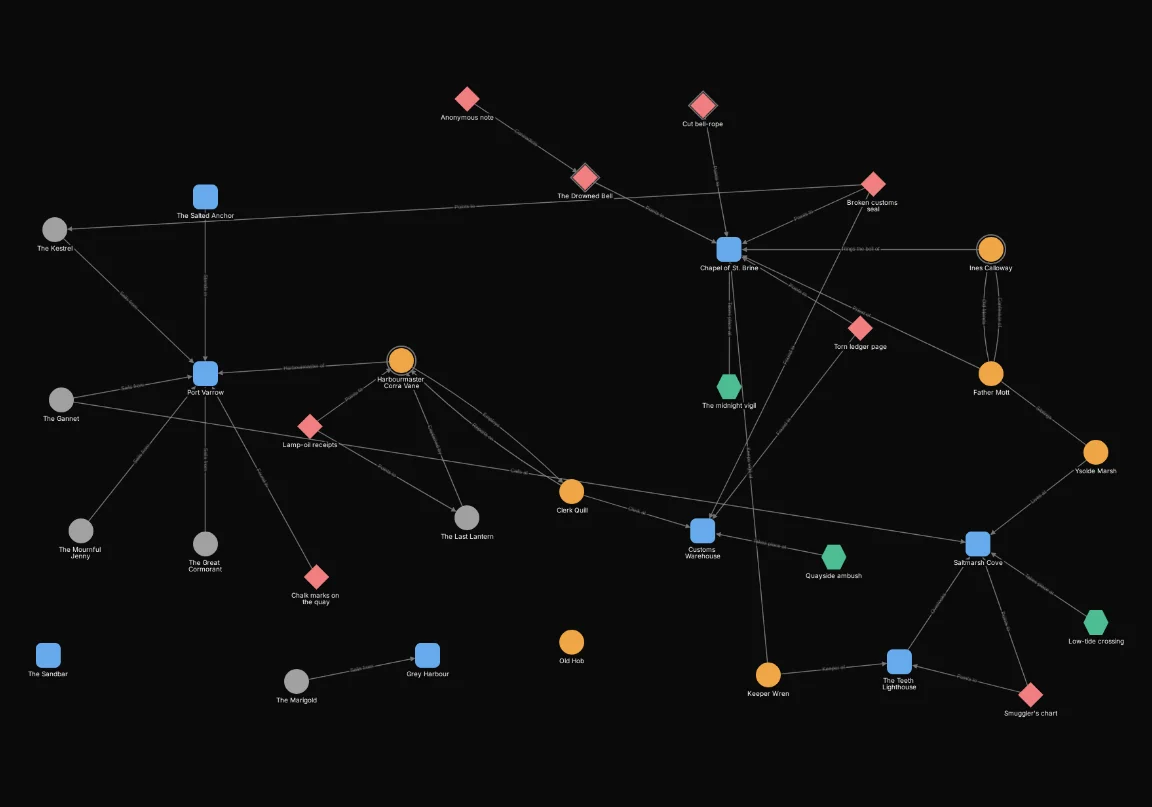
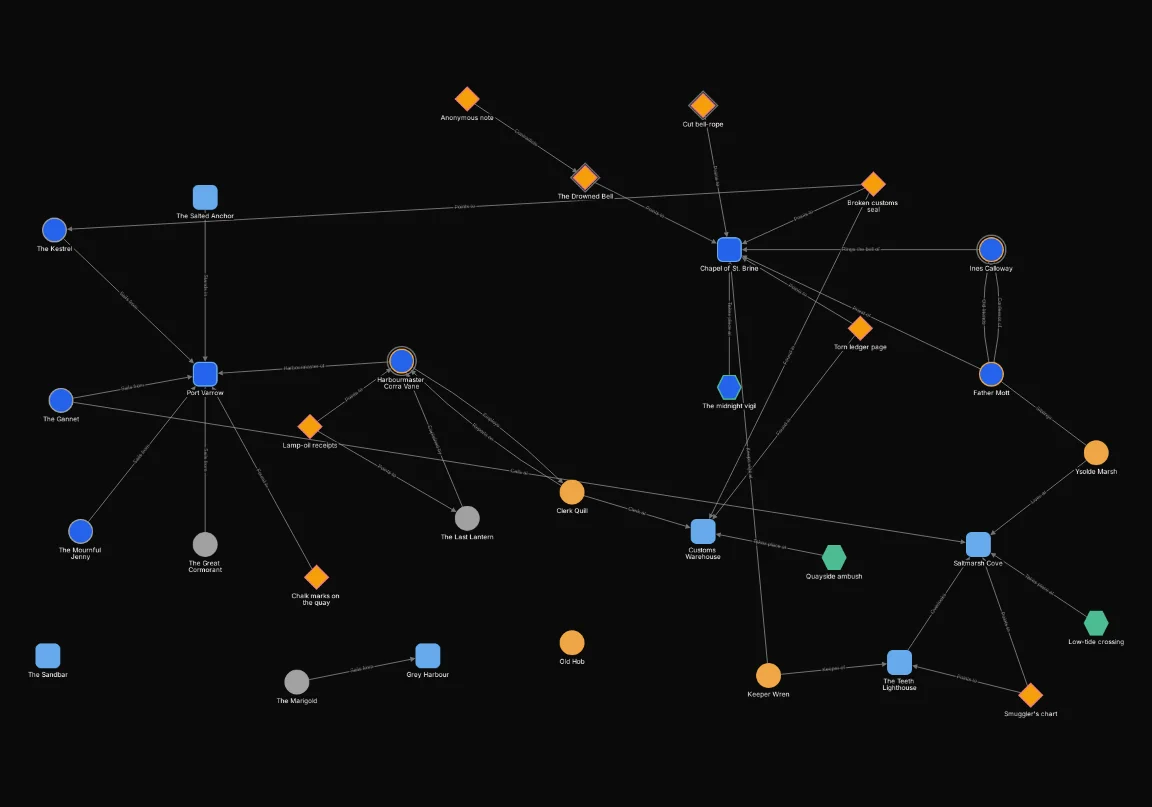
Now move Clues above Act 1. Act 1 is the later rule now, so those two nodes turn blue, while every other node keeps its colour. The same two rules give a different map in the other order, which is why order matters. When a result isn’t what you expected, read the rules from the bottom up: the last rule that matches the node and sets the effect is the one you see. The examples include this pair too, with the sentence that explains it.
A broken rule stops the view applying
A rule is broken when its selector can’t be used, for example because it refers to a field, option, tag or node that has since been deleted, or because it goes over a limit. A broken rule is never quietly treated as “every node”. Instead:
- The view is not applied until the problem is fixed. The map keeps showing the view it was showing before, or the Default view if there wasn’t one, and the sheet says which.
- The sheet shows Needs repair before it can be shown, with each problem listed under it.
- Each problem has the choices that fix it. Show takes you to the rule, Turn rule off sets the rule aside, and Choose an icon takes you to a badge whose icon was deleted.
A rule that is switched off doesn’t hold the view back. The sheet notes that its problems are in parts that are turned off and are kept for repair, and the view applies without it. Turning a broken rule off is the quickest way to get the rest of the view back while you decide what to do about it.
Limits
A view holds at most 64 rules. Each selector has its own limits, which Writing expressions lists, and the conditions across all of a view’s filters, rules and badge counts are limited together. A rule or badge count that goes over a limit counts as broken.