 NexusDM
Map appearance
A node type decides how its nodes look on the map. Appearance rules let you change that for the nodes you care about, without changing the type: ring the clues nobody has found yet, mark the harbours with an icon, draw the nodes of Act 1 a little bigger. Rules belong to a map view, so each view can style the same campaign differently.
This page covers what a rule is and where to find it. The rest of the section covers rules and their order, the effects a rule can have, and its badges and counts.
Where the rules are
Open Configure view in the map’s view controls and choose the Appearance tab. The tab lists the view’s rules in order, with Add rule below them. A view with no rules shows each node as its type draws it.

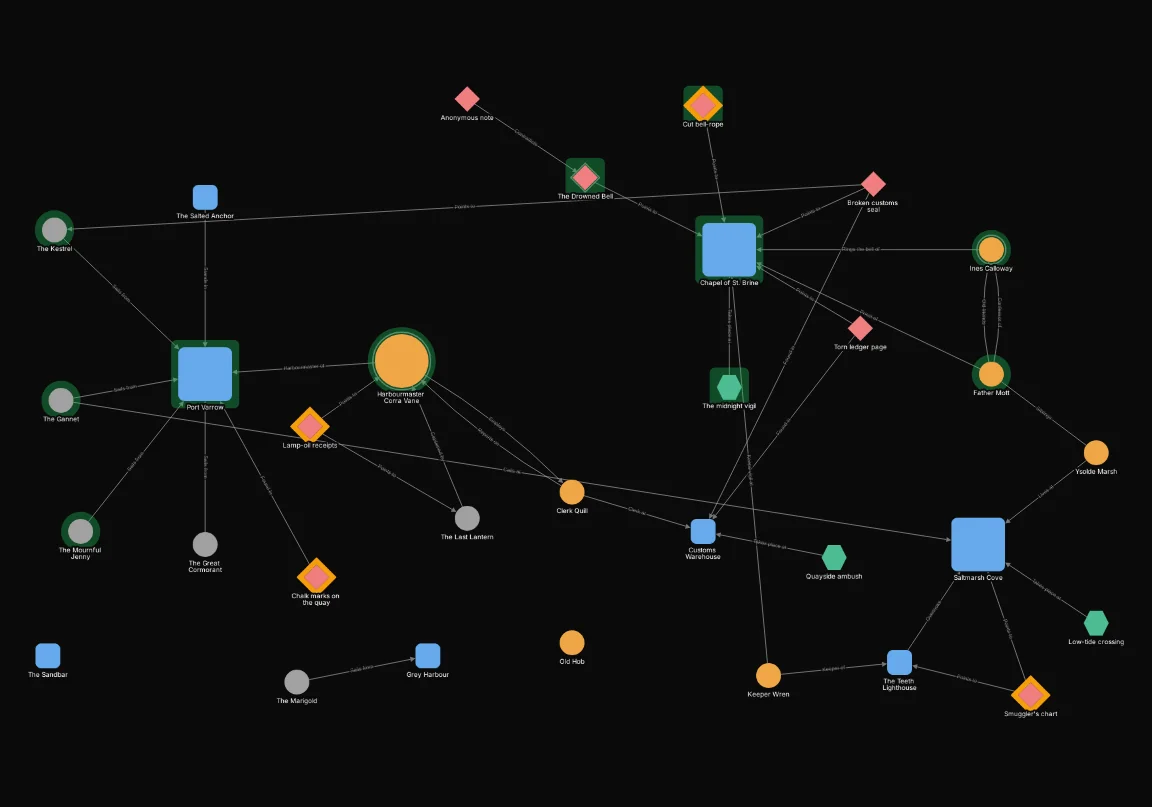
The tab holds three rules: an amber halo on the clues not yet given, a green underlay behind the Act 1 nodes and a larger size for the best-connected nodes. Here is the map with them applied. The rules style the nodes and never move or hide them.
What a rule is
An appearance rule has three parts:
- A name, so you can tell the rules apart. It is optional; an unnamed rule is called by its position, such as Rule 2.
- Applies to, a selector that picks the nodes the rule is for. It works exactly like the Include and Exclude filters, in the same builder and expression views. Map filters explains selectors, and Writing expressions covers the expression view.
- What the rule does to those nodes: any of the five effects, and a badge on any of the four corners.
A rule can be switched off without deleting it, which is a safe way to see what it is doing.
Rules sit on top of the types’ styles
Rules never change a node type. A node keeps its type’s colour, icon and size wherever no rule says otherwise, and a rule only changes what it names. Switch the rule off, or delete it, and its nodes go straight back to their type’s look.
Two things always stay visible, whatever a rule does: the highlight on the node you have selected, and the highlight on the nodes connected to it.
Rules look at the whole map, not only what’s shown
Rules and their badge counts are worked out over the whole scope of the map: the module’s nodes plus the campaign-level nodes. They are worked out before the Include and Exclude filters apply. So filtering nodes away never changes which nodes a rule matches, and never changes a badge count. A badge that says a node has four connections still says four when three of its neighbours are hidden.
Filters decide which nodes are drawn; rules decide how the nodes that are drawn look. Use Include and Exclude to choose the nodes, and rules to mark them out. Selectors are written the same way in both; see Map filters.